Jamie
Jamiewp:paragraph
Private browsing, commonly known as incognito mode, is a useful feature for maintaining privacy while browsing the internet.
/wp:paragraph
wp:paragraph
Whether you’re conducting sensitive searches, trying to prevent targeted advertisements, or using a shared device, incognito mode can help minimize digital traces.
/wp:paragraph
wp:paragraph
However, there are times when you may want to switch back to regular browsing mode, allowing your browser to remember your history, login credentials, and preferences.
/wp:paragraph
wp:paragraph
On an iPhone, incognito mode is available in Safari as Private Browsing, while third-party browsers like Chrome offer similar privacy-focused browsing options.
/wp:paragraph
wp:paragraph
Many people use this feature for various reasons, such as researching confidential topics, keeping online activity separate from regular browsing, or avoiding third-party tracking cookies.
/wp:paragraph
wp:paragraph
Despite its benefits, private browsing is not entirely invisible—your internet service provider and certain browser extensions may still track activity.
/wp:paragraph
wp:paragraph
If you no longer need the privacy benefits of incognito mode, it’s easy to exit it and return to standard browsing.
/wp:paragraph
wp:paragraph
Below is a step-by-step guide on how to close incognito mode in both Safari and Google Chrome on an iPhone.
/wp:paragraph
wp:image {“id”:12244,”width”:”672px”,”height”:”auto”,”sizeSlug”:”full”,”linkDestination”:”media”,”align”:”center”}
/wp:image
wp:heading
Exiting Incognito Mode in Safari on iPhone
/wp:heading
wp:list {“ordered”:true}
- wp:list-item
- Launch Safari – Open the Safari app on your iPhone by tapping its icon.
- Find the Tabs Button – Look at the bottom right corner of the screen and locate the button that resembles two overlapping squares. Tap on it to view all open tabs.
- View Open Tabs – A new screen will appear displaying all your current browsing sessions. These may include standard browsing tabs, any saved Tab Groups, and any Private Browsing tabs that were opened in incognito mode.
- Close Private Browsing Tabs – If you want to completely exit incognito mode, swipe left on any open Private Browsing tabs to close them. Once all incognito tabs are closed, Safari will switch back to standard browsing mode, and your browsing history will be saved.
- Switch Back to Regular Mode Without Closing Tabs – If you don’t want to manually close each tab, you can quickly return to normal browsing by swiping left in the View All Tabs section from Private Browsing to standard browsing mode.
/wp:list-item
wp:list-item
/wp:list-item
wp:list-item
/wp:list-item
wp:list-item
/wp:list-item
wp:list-item
/wp:list-item
/wp:list
wp:heading
Exiting Incognito Mode in Chrome on iPhone
/wp:heading
wp:paragraph
For those who use Google Chrome as their primary browser, the process of leaving incognito mode is slightly different but still straightforward.
/wp:paragraph
wp:list {“ordered”:true}
- wp:list-item
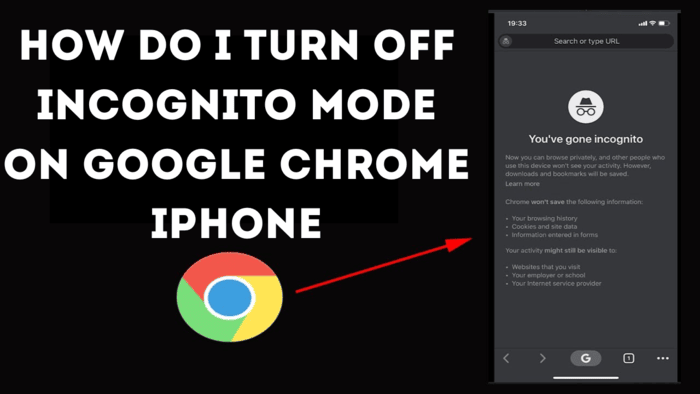
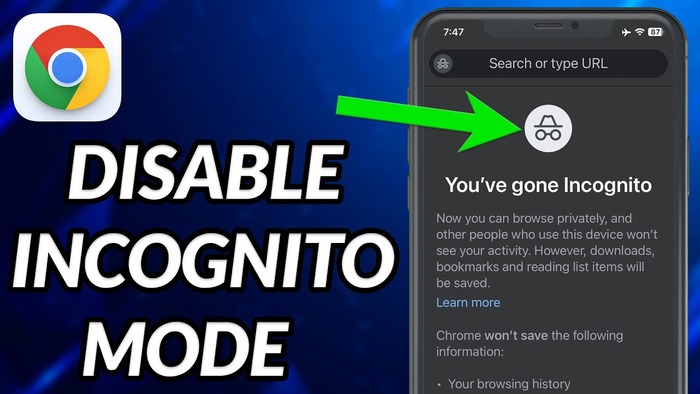
- Open Google Chrome – Tap on the Chrome app to open the browser.
- Access Open Tabs – At the bottom right corner of the screen, find and tap the button displaying a square with a number inside it. This number represents the total number of open tabs.
- Switch to Standard Browsing – After tapping the tabs button, you will see options for both Incognito and Regular browsing modes. The Incognito icon, which features a fedora and glasses, signifies private browsing mode. To return to standard browsing, simply tap on the square button showing the number of open non-incognito tabs. This will switch the browser back to its regular mode, where your history and activity will be recorded.
/wp:list-item
wp:list-item
/wp:list-item
wp:list-item
/wp:list-item
/wp:list
wp:image {“id”:12243,”width”:”660px”,”height”:”auto”,”sizeSlug”:”full”,”linkDestination”:”media”,”align”:”center”}
/wp:image
wp:heading
How to Disable Private Browsing Mode Permanently in Safari?
/wp:heading
wp:paragraph
If you want to remove the Private Browsing option entirely from Safari, this can be done through the iPhone’s settings.
/wp:paragraph
wp:paragraph
By adjusting content restrictions, you can prevent access to Private Browsing mode, which may be useful for parental controls or other privacy preferences.
/wp:paragraph
wp:paragraph
To disable Private Browsing:
/wp:paragraph
wp:list {“ordered”:true}
- wp:list-item
- Open the Settings app on your iPhone.
- Tap on Screen Time to access usage and restriction settings.
- Select Content & Privacy Restrictions to modify browsing permissions.
- Tap Store, Web, Siri & Game Center Content to access web content settings.
- Choose Web Content and select Limit Adult Websites instead of “Unrestricted.”
/wp:list-item
wp:list-item
/wp:list-item
wp:list-item
/wp:list-item
wp:list-item
/wp:list-item
wp:list-item
/wp:list-item
/wp:list
wp:paragraph
Once this setting is enabled, Safari will automatically reboot, and the option to open Private Browsing tabs will be removed from the browser.
/wp:paragraph
wp:paragraph
This restriction ensures that all browsing activity occurs in regular mode, where history and data are saved.
/wp:paragraph
wp:heading
Important Considerations About Incognito Mode
/wp:heading
wp:paragraph
While private browsing offers an extra level of privacy, it does not make online activity entirely anonymous.
/wp:paragraph
wp:paragraph
Your internet service provider (ISP), network administrator, and certain browser extensions can still track your online activity.
/wp:paragraph
wp:paragraph
Additionally, incognito mode does not prevent websites from identifying your device through unique browser fingerprints.
/wp:paragraph
wp:paragraph
However, when used appropriately, it provides a convenient way to prevent saved browsing history, auto-fill suggestions, and cookie tracking, making it a valuable tool for protecting personal information when needed.
/wp:paragraph
wp:paragraph
If privacy concerns go beyond what incognito mode offers, using a VPN, clearing cookies regularly, or adjusting browser privacy settings may provide additional protection.
/wp:paragraph