Jamie
Jamiewp:list
- wp:list-item
- Tap the Share icon (the box with an arrow) on a web page. Then, tap Find on Page and enter your search term.
/wp:list-item
/wp:list
wp:paragraph
/wp:paragraph
wp:list
- wp:list-item
- For older iOS versions: Tap Share, swipe, tap Find on Page, and tap it again.
/wp:list-item
/wp:list
wp:paragraph
Learn how to use the Find on Page feature in Safari on an iPhone to search for text on a mobile web page. Instructions cover iOS 14 to iOS 4.
/wp:paragraph
wp:image {“id”:12248,”width”:”684px”,”height”:”auto”,”sizeSlug”:”full”,”linkDestination”:”media”,”align”:”center”}

/wp:image
wp:heading
How to Use Safari’s Find on Page in iOS 14 and 13
/wp:heading
wp:paragraph
Follow these steps to use the “Find on Page” feature in Safari on iOS 14 or 13:
/wp:paragraph
wp:list {“ordered”:true}
- wp:list-item
- Open Safari and visit the website you want to search.
- Tap the action box at the bottom of the screen (the box with an arrow).
- Swipe up on the menu that appears.
- Select Find on Page from the options.
- Enter the text you want to search for in the search bar.
- The search highlights the first match when it finds the text.
- Use the arrows above the keyboard to navigate through all the matches.
- To search for something else, tap the X in the search bar.
- Once done, tap Done to close the search.
/wp:list-item
wp:list-item
/wp:list-item
wp:list-item
/wp:list-item
wp:list-item
/wp:list-item
wp:list-item
/wp:list-item
wp:list-item
/wp:list-item
wp:list-item
/wp:list-item
wp:list-item
/wp:list-item
wp:list-item
/wp:list-item
/wp:list
wp:heading
How to Use Safari’s Find on Page in iOS 9 to iOS 12?
/wp:heading
wp:paragraph
Follow these steps to search for text on a webpage in Safari:
/wp:paragraph
wp:list {“ordered”:true}
- wp:list-item
- Open Safari and go to the website you want to search.
- Tap the action box (the icon with an arrow) at the bottom of the screen.
- Scroll through the icons in the second row and select Find on Page.
- Type the text you’re looking for in the search bar.
- The page will feature the first match.
- Use the arrows next to the search bar to navigate through all occurrences of the text.
- Tap the X in the search bar if you want to search for a different word.
- Tap “Done” to finish and exit.
/wp:list-item
wp:list-item
/wp:list-item
wp:list-item
/wp:list-item
wp:list-item
/wp:list-item
wp:list-item
/wp:list-item
wp:list-item
/wp:list-item
wp:list-item
/wp:list-item
wp:list-item
/wp:list-item
/wp:list
wp:image {“id”:12249,”width”:”526px”,”height”:”auto”,”sizeSlug”:”full”,”linkDestination”:”media”,”align”:”center”}
/wp:image
wp:heading
How to Use Safari’s Find on Page in iOS 7 and 8
/wp:heading
wp:paragraph
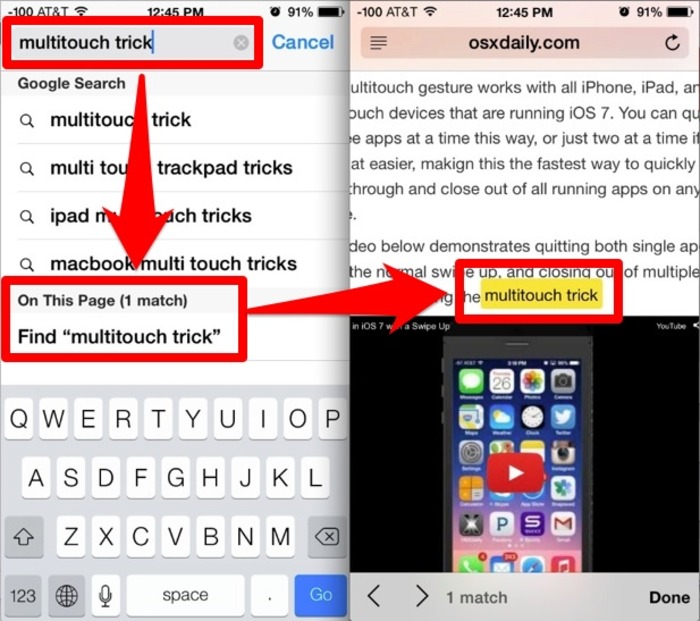
Follow these steps to use Safari’s Find on Page feature in iOS 7 and 8:
/wp:paragraph
wp:list {“ordered”:true}
- wp:list-item
- Open Safari and visit a webpage.
- Tap the address bar at the top of the screen.
- Enter the text you want to search for.
- Safari will display suggestions as you type:
wp:list- wp:list-item
- It will suggest URLs from your browsing history.
- The Top Hits section will offer more related suggestions.
- Apple will show suggested websites based on your settings (Settings > Safari > Search).
- Google (or your default search engine) will show search suggestions, followed by bookmarks and history results.
/wp:list-item
wp:list-item/wp:list-item
wp:list-item/wp:list-item
wp:list-item/wp:list-item
/wp:list
- To find your search, swipe to the bottom of the screen. You’ll see “On This Page” with a number indicating how often your term appears.
- Tap “Find” to see all matches for your search term.
- Navigate through the results using the arrows. Tap the X to clear the search and start over.
- Tap “Done” when you finish searching.
/wp:list-item
wp:list-item
/wp:list-item
wp:list-item
/wp:list-item
wp:list-item
/wp:list-item
wp:list-item
/wp:list-item
wp:list-item
/wp:list-item
wp:list-item
/wp:list-item
wp:list-item
/wp:list-item
/wp:list
wp:heading
How to Use Safari Find on Page in iOS 4-6
/wp:heading
wp:paragraph
In earlier iOS versions, the steps vary:
/wp:paragraph
wp:list {“ordered”:true}
- wp:list-item
- Open Safari and visit a website.
- Tap the search bar at the top right (it shows “Google” if Google is your default search engine).
- Enter the text you want to find.
- Below the Google suggestions, tap “On This Page” to view results.
- The text will highlight. Tap Previous and Next to move between the results.
/wp:list-item
wp:list-item
/wp:list-item
wp:list-item
/wp:list-item
wp:list-item
/wp:list-item
wp:list-item
/wp:list-item
/wp:list