Jamie
Jamiewp:paragraph
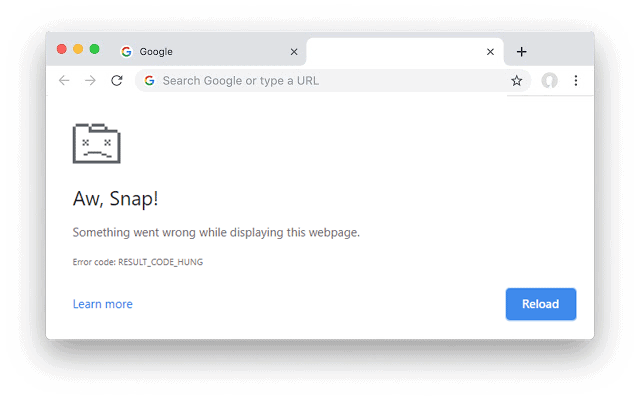
Google Chrome is generally a reliable browser, but users occasionally encounter the “Aw, Snap!” error, which disrupts access to a webpage.
/wp:paragraph
wp:paragraph
This error is often temporary and can typically be fixed through simple steps like refreshing the page or clearing cached data. If the issue continues, several additional solutions can help resolve it.
/wp:paragraph
wp:image {“id”:12630,”width”:”724px”,”height”:”auto”,”sizeSlug”:”large”,”linkDestination”:”media”,”align”:”center”}
/wp:image
wp:heading
What Is the “Aw, Snap!” Error?
/wp:heading
wp:paragraph
As the most popular desktop browser, Google Chrome holds a 77% market share. When this error appears, it typically means Chrome can’t load the requested webpage.
/wp:paragraph
wp:paragraph
This could be due to a technical glitch, insufficient memory, or an external interruption.
/wp:paragraph
wp:paragraph
Reloading the page may resolve the issue, but there are other potential causes:
/wp:paragraph
wp:list
- wp:list-item
- Corrupted or outdated browser data
/wp:list-item
/wp:list
wp:paragraph
/wp:paragraph
wp:list
- wp:list-item
- Problematic extensions
/wp:list-item
/wp:list
wp:paragraph
/wp:paragraph
wp:list
- wp:list-item
- Malware infections
/wp:list-item
/wp:list
wp:paragraph
/wp:paragraph
wp:list
- wp:list-item
- Unstable internet connection
/wp:list-item
/wp:list
wp:paragraph
Though Chrome doesn’t provide a specific explanation for the error, it’s a common and manageable issue.
/wp:paragraph
wp:heading {“level”:3}
1. Refresh the Page
/wp:heading
wp:paragraph
Start by simply reloading the page. Chrome might have experienced a temporary glitch during loading.
/wp:paragraph
wp:paragraph
To refresh:
/wp:paragraph
wp:list
- wp:list-item
- On desktop: Click the reload icon or use the following shortcuts: wp:list
- wp:list-item
- Windows/Linux: F5 or Ctrl + R
- Mac: Command + R
/wp:list-item
wp:list-item/wp:list-item
/wp:list
- On mobile: Tap the three-dot menu and select Reload.
/wp:list-item
wp:list-item
/wp:list-item
/wp:list
wp:paragraph
If this doesn’t work, proceed with other methods.
/wp:paragraph
wp:heading {“level”:3}
2. Test Your Internet Connection
/wp:heading
wp:paragraph
A weak or unstable connection can cause Chrome to fail in displaying content. Try the following:
/wp:paragraph
wp:list
- wp:list-item
- Enable airplane mode for a few seconds, then turn it off and reload the page.
/wp:list-item
/wp:list
wp:paragraph
/wp:paragraph
wp:list
- wp:list-item
- Pause any ongoing downloads or streaming to free up bandwidth.
/wp:list-item
/wp:list
wp:paragraph
/wp:paragraph
wp:list
- wp:list-item
- Disable your VPN and check if the issue is resolved.
/wp:list-item
/wp:list
wp:paragraph
/wp:paragraph
wp:list
- wp:list-item
- Reset your router if you’re on Wi-Fi or move to an area with better mobile data reception.
/wp:list-item
/wp:list
wp:heading {“level”:3}
3. Clear Your Chrome Cache
/wp:heading
wp:paragraph
Cached files help Chrome load pages faster, but sometimes these files become corrupted. To clear the cache:
/wp:paragraph
wp:list
- wp:list-item
- Click the three-dot menu, go to More Tools > Clear Browsing Data.
/wp:list-item
/wp:list
wp:paragraph
/wp:paragraph
wp:list
- wp:list-item
- In the Basic tab, select Cached images and files.
/wp:list-item
/wp:list
wp:paragraph
/wp:paragraph
wp:list
- wp:list-item
- Click Clear data and reload the page.
/wp:list-item
/wp:list
wp:paragraph
To prevent future cache-related issues, consider blocking third-party cookies or clearing them after each session via Settings > Privacy and security.
/wp:paragraph
wp:heading {“level”:3}
4. Use Incognito Mode
/wp:heading
wp:paragraph
If you’re not ready to clear your cache, try browsing in Incognito Mode, which disables extensions and uses no cached data. To open Incognito:
/wp:paragraph
wp:list
- wp:list-item
- On desktop: Ctrl + Shift + N (Windows) or Command + Shift + N (Mac)
/wp:list-item
/wp:list
wp:paragraph
/wp:paragraph
wp:list
- wp:list-item
- On mobile: Tap the menu icon and select New Incognito Tab.
/wp:list-item
/wp:list
wp:paragraph
Enter the URL again. If the page loads, the issue is likely due to cached data or an extension.
/wp:paragraph
wp:heading {“level”:3}
5. Turn Off Extensions
/wp:heading
wp:paragraph
Certain extensions, particularly poorly coded ones, can affect Chrome’s performance. To disable extensions:
/wp:paragraph
wp:list
- wp:list-item
- Go to More Tools > Extensions.
/wp:list-item
/wp:list
wp:paragraph
/wp:paragraph
wp:list
- wp:list-item
- Toggle each extension off one by one.
/wp:list-item
/wp:list
wp:paragraph
/wp:paragraph
wp:list
- wp:list-item
- Reload the page after each change.
/wp:list-item
/wp:list
wp:paragraph
If the issue resolves after disabling a particular extension, remove it to prevent future problems.
/wp:paragraph
wp:image {“id”:12631,”width”:”670px”,”height”:”auto”,”sizeSlug”:”full”,”linkDestination”:”media”,”align”:”center”}
/wp:image
wp:heading {“level”:3}
6. Update Google Chrome
/wp:heading
wp:paragraph
Though Chrome usually updates automatically, you may miss an update that fixes bugs or improves performance. To check for updates:
/wp:paragraph
wp:list
- wp:list-item
- Go to Settings > About Chrome.
/wp:list-item
/wp:list
wp:paragraph
/wp:paragraph
wp:list
- wp:list-item
- If an update is available, install it.
/wp:list-item
/wp:list
wp:paragraph
After updating, restart Chrome and check if the issue is resolved.
/wp:paragraph
wp:heading {“level”:3}
7. Restart Chrome or Your Device
/wp:heading
wp:paragraph
If the previous solutions don’t help, try closing Chrome and reopening it.
/wp:paragraph
wp:paragraph
If that doesn’t work, restart your device—whether it’s a computer, tablet, or phone. After rebooting, attempt to load the page again.
/wp:paragraph
wp:heading {“level”:3}
8. Scan for Malware
/wp:heading
wp:paragraph
In some cases, malware can disrupt Chrome’s functionality. Look for signs like:
/wp:paragraph
wp:list
- wp:list-item
- Unwanted ads or pop-ups
/wp:list-item
/wp:list
wp:paragraph
/wp:paragraph
wp:list
- wp:list-item
- Changes to browser settings
/wp:list-item
/wp:list
wp:paragraph
/wp:paragraph
wp:list
- wp:list-item
- Slow performance
/wp:list-item
/wp:list
wp:paragraph
/wp:paragraph
wp:list
- wp:list-item
- Suspicious extensions or redirects
/wp:list-item
/wp:list
wp:paragraph
If you’re on Windows, use Chrome’s cleanup tool:
/wp:paragraph
wp:list
- wp:list-item
- Go to Settings > Advanced > Reset and clean up > Clean up computer, then click Find. If harmful software is detected, click Remove.
/wp:list-item
/wp:list
wp:paragraph
On a Mac, check for unfamiliar apps in the Applications folder, right-click them, and select Move to Trash.
/wp:paragraph
wp:paragraph
As a last resort, reset Chrome to its original settings by going to Settings > Reset Settings > Restore settings to their original defaults.
/wp:paragraph
wp:heading
Conclusion
/wp:heading
wp:paragraph
The “Aw, Snap!” error can be frustrating, but it’s typically easy to fix. Begin with basic steps like reloading the page or using Incognito Mode.
/wp:paragraph
wp:paragraph
If necessary, clear the cache, review your extensions, or update Chrome.
/wp:paragraph
wp:paragraph
In rare instances, restarting your device or scanning for malware might be required. By following these steps, you can quickly restore Chrome’s functionality.
/wp:paragraph