Jamie
Jamiewp:paragraph
Browsing websites on an iPhone often defaults to a mobile-friendly view, but sometimes, you need the full desktop version.
/wp:paragraph
wp:paragraph
Whether for better functionality or accessing unavailable features, switching to desktop mode is straightforward.
/wp:paragraph
wp:paragraph
This article covers ways to enable desktop mode in Chrome and Safari on your iPhone.
/wp:paragraph
wp:image {“id”:12031,”width”:”682px”,”height”:”auto”,”sizeSlug”:”full”,”linkDestination”:”media”,”align”:”center”}
/wp:image
wp:heading
Ways to View Desktop Sites in Chrome and Safari
/wp:heading
wp:paragraph
When browsing on an iPhone, websites often display in a mobile-friendly format.
/wp:paragraph
wp:paragraph
While this makes search easier, some users prefer the full desktop version for better functionality or a more familiar interface.
/wp:paragraph
wp:paragraph
Both Chrome and Safari offer ways to switch to desktop mode. Below are different methods to enable this feature.
/wp:paragraph
wp:heading {“level”:3}
One-Time Desktop View in Safari
/wp:heading
wp:paragraph
If you need to access a desktop version of a website only once, Safari allows you to request it temporarily.
/wp:paragraph
wp:paragraph
This method applies only to the current tab and does not affect other sites or future visits.
/wp:paragraph
wp:heading {“level”:4}
Steps to Request Desktop View for a Single Page
/wp:heading
wp:table
| Step | Action |
| 1 | Open Safari and type the URL of the website in the address bar. Tap Go to load it. |
| 2 | Look for the aA button located beside the address bar. Tap it to open a menu. |
| 3 | Select Request Desktop Website from the options displayed. |
| 4 | The webpage will reload and display its desktop version. |
/wp:table
wp:paragraph
This temporary setting will reset if you refresh, open a new tab, or visit a different site.
/wp:paragraph
wp:heading {“level”:3}
Permanent Desktop Mode for a Specific Website in Safari
/wp:heading
wp:paragraph
If you frequently visit a particular website and prefer its desktop layout, Safari allows you to set desktop mode permanently for that site.
/wp:paragraph
wp:heading {“level”:4}
Steps to Enable Desktop Mode for a Specific Website
/wp:heading
wp:table
| Step | Action |
| 1 | Open Safari and enter the website URL in the address bar. Tap Go to open it. |
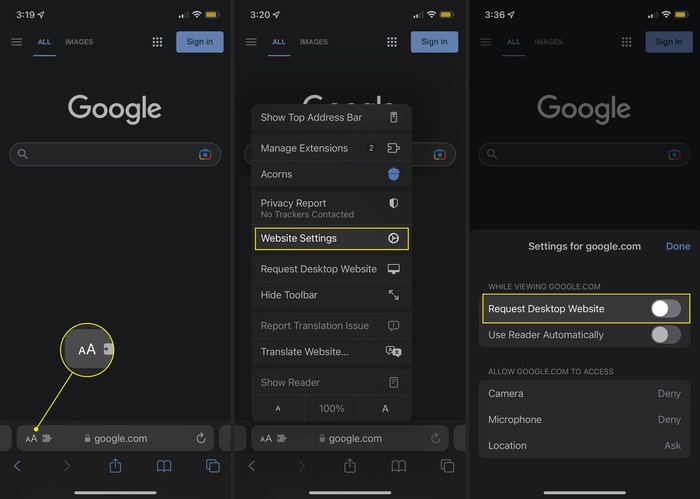
| 2 | Tap the aA icon located near the address bar. |
| 3 | From the menu, choose Website Settings to open customization options. |
| 4 | Locate Request Desktop Website and toggle the switch to the On position. |
| 5 | Tap Done to save the setting. |
/wp:table
wp:paragraph
From now on, Safari will always display this website in desktop mode. To undo this change, revisit the Website Settings and disable the option.
/wp:paragraph
wp:heading {“level”:3}
Apply Desktop Mode for All Websites in Safari
/wp:heading
wp:paragraph
For users who always prefer the desktop version of websites, Safari provides an option to make desktop mode the default for all pages.
/wp:paragraph
wp:heading {“level”:4}
Steps to Enable Desktop Mode for All Websites
/wp:heading
wp:table
| Step | Action |
| 1 | Open the Settings app on your iPhone. |
| 2 | Scroll down and select Safari from the list of apps. |
| 3 | Look for Request Desktop Website under the Settings for Websites section. |
| 4 | Tap Request Desktop Website to open the settings menu. |
| 5 | Toggle on the option for All Websites to enable desktop mode globally. |
/wp:table
wp:paragraph
With this setting activated, all sites will open in desktop mode by default when using Safari.
/wp:paragraph
wp:paragraph
If you need to revert to mobile versions, return to Settings > Safari > Request Desktop Website and turn off All Websites.
/wp:paragraph
wp:heading {“level”:3}
Enable Desktop Mode in Chrome
/wp:heading
wp:paragraph
If you use Google Chrome instead of Safari, you can also request the desktop version of a website quickly.
/wp:paragraph
wp:paragraph
Chrome provides a built-in feature to switch between mobile and desktop modes.
/wp:paragraph
wp:heading {“level”:4}
Steps to Request Desktop Mode in Chrome
/wp:heading
wp:table
| Step | Action |
| 1 | Open Google Chrome on your iPhone. |
| 2 | Type the website URL in the address bar and tap Go. |
| 3 | Tap the three-dot menu (•••) located at the bottom-right corner. |
| 4 | Scroll down and find Request Desktop Site in the menu. Tap it to enable desktop mode. |
/wp:table
wp:paragraph
Once enabled, the website will reload in its desktop version. If you go to other pages within the same site, they may also appear in desktop mode.
/wp:paragraph
wp:heading {“level”:4}
Returning to Mobile Mode in Chrome
/wp:heading
wp:paragraph
If you wish to switch back to the mobile version, follow these steps:
/wp:paragraph
wp:table
| Step | Action |
| 1 | Open Chrome and tap the ••• menu again. |
| 2 | Scroll down and select Request Mobile Site. |
/wp:table
wp:paragraph
Alternatively, you can also use the Share icon near the address bar and tap Request Mobile Site from the options.
/wp:paragraph
wp:heading
When to Use Desktop Mode
/wp:heading
wp:image {“id”:12030,”width”:”662px”,”height”:”auto”,”sizeSlug”:”full”,”linkDestination”:”media”,”align”:”center”}
/wp:image
wp:paragraph
While mobile-optimized websites are designed for smooth search, some situations may require the desktop version:
/wp:paragraph
wp:list
- wp:list-item
- Accessing full website functionality: Some features may be unavailable on mobile versions.
/wp:list-item
/wp:list
wp:paragraph
/wp:paragraph
wp:list
- wp:list-item
- Better formatting for complex pages: Websites with intricate layouts may look more organized in desktop mode.
/wp:list-item
/wp:list
wp:paragraph
/wp:paragraph
wp:list
- wp:list-item
- Using desktop-specific tools: Some web applications and online editors work better in a full-screen format.
/wp:list-item
/wp:list
wp:paragraph
/wp:paragraph
wp:list
- wp:list-item
- Viewing a website as it appears on a computer: Developers and testers might need this feature.
/wp:list-item
/wp:list
wp:heading
Conclusion
/wp:heading
wp:paragraph
Switching to desktop mode on an iPhone is simple whether you use Safari or Chrome.
/wp:paragraph
wp:paragraph
Following the above steps, you can request a desktop view temporarily or set it as a permanent preference.
/wp:paragraph
wp:paragraph
Safari allows users to apply this setting for individual websites or all sites globally, while Chrome provides an easy toggle for switching between modes.
/wp:paragraph
wp:paragraph
Understanding how to enable desktop mode ensures a better browsing experience based on personal preferences and needs.
/wp:paragraph