Jamie
Jamiewp:paragraph
Chrome Flags include hidden and experimental options that unlock features not found in the regular Chrome browser.
/wp:paragraph
wp:paragraph
Developers and advanced users mainly use them to fix issues or customize Chrome. However, some flags can help everyday users, such as enabling dark mode for all websites.
/wp:paragraph
wp:paragraph
Users can access Windows, macOS, Android, and iOS Chrome Flags. These features are experimental and may have risks.
/wp:paragraph
wp:paragraph
Turning on certain flags might make the browser unstable or cause it to stop working. Before making changes, users should think carefully and only enable options they understand.
/wp:paragraph
wp:paragraph
If issues happen, users can reset Chrome to default settings or, if necessary, reinstall the browser.
/wp:paragraph
wp:paragraph
Even with the risks, Chrome Flags provide a way to try new features and improve browsing. Now, here’s how to change Chrome Flags.
/wp:paragraph
wp:image {“id”:11982,”width”:”682px”,”height”:”auto”,”sizeSlug”:”full”,”linkDestination”:”media”,”align”:”center”}
/wp:image
wp:heading
How to Change Chrome Flags
/wp:heading
wp:paragraph
You can enable Chrome flags on Chromebook, Windows PC, Mac, iOS, or Android by following these steps:
/wp:paragraph
wp:heading {“level”:3}
1. Open Chrome
/wp:heading
wp:paragraph
Launch the Chrome browser on your device.
/wp:paragraph
wp:heading {“level”:3}
2. Access Chrome Flags
/wp:heading
wp:paragraph
Type chrome://flags/ in the address bar and press Enter.
/wp:paragraph
wp:heading {“level”:3}
3. Find the Desired Flag
/wp:heading
wp:paragraph
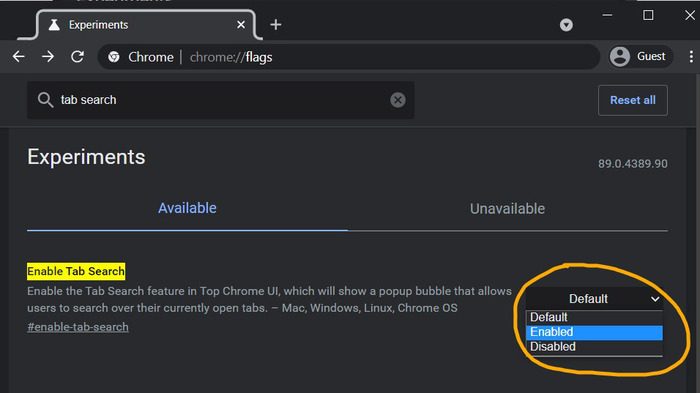
Scroll through the list or use the search bar at the top to locate the flag you want to enable.
/wp:paragraph
wp:heading {“level”:3}
4. Enable the Flag
/wp:heading
wp:paragraph
Click or tap the flag, then select Enabled from the dropdown menu.
/wp:paragraph
wp:heading {“level”:3}
5. Apply the Changes
/wp:heading
wp:paragraph
Click or tap Relaunch to restart Chrome and apply the new settings.
/wp:paragraph
wp:paragraph
The process is the same for all devices, though the interface may look slightly different.
/wp:paragraph
wp:heading
Turn Off Chrome Flags
/wp:heading
wp:image {“id”:11981,”width”:”644px”,”height”:”auto”,”sizeSlug”:”full”,”linkDestination”:”media”,”align”:”center”}
/wp:image
wp:paragraph
Some flags can cause problems like pages not loading right. You can quickly turn them off and reset Chrome to default. Follow these steps to reset Chrome flags.
/wp:paragraph
wp:list {“ordered”:true}
- wp:list-item
- Open chrome://flags/ and reset all
/wp:list-item
/wp:list
wp:paragraph
Type chrome://flags/ in the address bar and press Enter. Click or tap recital at the top-right. Then, click or tap Relaunch. Chrome will restart, and all flags will return to default.
/wp:paragraph
wp:heading
Chrome Flags You Can Enable or Disable
/wp:heading
wp:paragraph
Chrome has many flags, so choosing which ones to turn on or off can be tricky. Here are three useful ones you might want to try if you don’t want to browse the long list.
/wp:paragraph
wp:heading {“level”:3}
Speed Up Downloads with Parallel Downloading
/wp:heading
wp:paragraph
This flag helps speed up large downloads on all platforms. It splits downloads into three smaller parts and merges them once complete.
/wp:paragraph
wp:paragraph
Type “Parallel Downloading” in the flag search bar to boost download speed. Select Enabled, then click Relaunch.
/wp:paragraph
wp:heading {“level”:3}
Enable Dark Mode on All Websites
/wp:heading
wp:paragraph
This flag forces websites to display in dark mode. It works well on most pages, but you can turn it off anytime if some look odd.
/wp:paragraph
wp:paragraph
To turn on dark mode, type “Auto Dark Mode for Web Contents” in the flag search bar. Select Enabled, then click Relaunch.
/wp:paragraph
wp:heading {“level”:3}
Make Chrome Touch-Friendly on Windows
/wp:heading
wp:paragraph
This flag improves Chrome’s touch interface, making more prominent elements like the search bar. It is helpful for touchscreen devices like the Surface Pro.
/wp:paragraph
wp:paragraph
Type “Touch UI Layout” in the flag search bar to improve Chrome’s touch interface. Select Enabled, then click Relaunch.
/wp:paragraph
wp:paragraph
Now that you know how to enable Chrome flags, you can also learn how to block ads, install extensions, lock incognito tabs, and block websites in Chrome.
/wp:paragraph