Jamie
Jamiewp:paragraph
Some websites do not offer a dedicated mobile app, but that doesn’t mean you can’t create a convenient shortcut for quick access.
/wp:paragraph
wp:paragraph
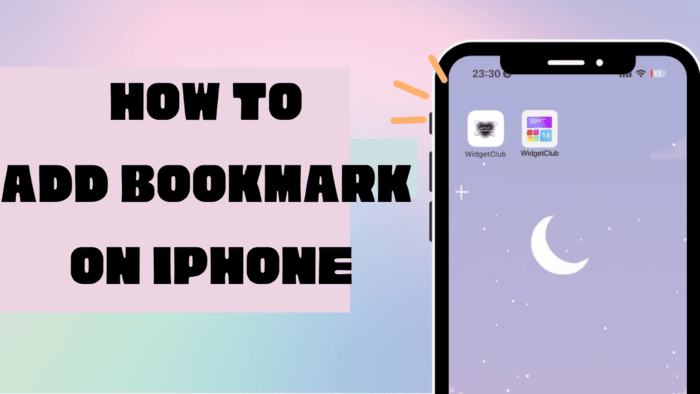
Instead of repeatedly opening a web browser, typing a URL, or searching through bookmarks, you can place a direct link to your favorite site right on your iPhone or iPad’s Home screen.
/wp:paragraph
wp:paragraph
This allows you to open the website with a single tap, saving time and making your browsing experience more seamless.
/wp:paragraph
wp:paragraph
When you add a website shortcut to your Home screen, tapping it will instantly launch Safari and open the specific page you saved.
/wp:paragraph
wp:paragraph
If the website is optimized for mobile devices with a responsive layout, accessing it through this shortcut can feel like using an app, offering a more integrated experience.
/wp:paragraph
wp:paragraph
Another advantage is that you can add multiple website links and arrange them just like regular apps.
/wp:paragraph
wp:paragraph
You can place them in folders, organize them on different pages, or keep them alongside other frequently used apps for quick and easy access.
/wp:paragraph
wp:image {“id”:12216,”width”:”652px”,”height”:”auto”,”sizeSlug”:”full”,”linkDestination”:”media”,”align”:”center”}
/wp:image
wp:heading
Steps to Add a Website Shortcut to Your iPhone or iPad Home Screen
/wp:heading
wp:list {“ordered”:true}
- wp:list-item
- Open Safari – Start by launching the Safari browser on your iPhone or iPad.
- Visit the Website – Go to the webpage you want to create a shortcut for. Make sure you’re on the exact page you want to open when you tap the shortcut.
- Access the Share Menu – Look at the bottom of the screen and tap the Share button, which is represented by a square with an arrow pointing upward.
- Find the “Add to Home Screen” Option – Scroll through the list of available actions and select Add to Home Screen. wp:list
- wp:list-item
- If this option isn’t visible, scroll to the bottom, tap Edit Actions, then find Add to Home Screen and tap the + button to enable it. This will ensure the option appears in your Share menu moving forward.
/wp:list-item
/wp:list
- Customize the Name – A text field will appear, allowing you to rename the shortcut. This name will be displayed beneath the icon on your Home screen, so choose something recognizable.
- Confirm the Addition – Tap Add in the top-right corner of the screen. The shortcut will now appear on your Home screen in the next available space.
- Organize the Shortcut – If you want to rearrange its position, press and hold the icon until the apps start jiggling. Then, drag the shortcut to your preferred location. Once it’s placed where you want it, tap Done to save the changes.
/wp:list-item
wp:list-item
/wp:list-item
wp:list-item
/wp:list-item
wp:list-item
/wp:list-item
wp:list-item
/wp:list-item
wp:list-item
/wp:list-item
wp:list-item
/wp:list-item
/wp:list
wp:paragraph
By following these steps, you can create as many website shortcuts as needed, turning your Home screen into a personalized hub for your most visited sites.
/wp:paragraph
wp:paragraph
Whether it’s a news site, a social media page, or an essential tool you use daily, these shortcuts can enhance accessibility and streamline your browsing experience.
/wp:paragraph