Jamie
Jamiewp:paragraph
Take control of Chrome by blocking ads that interrupt browsing. Stop them on both desktop and mobile.
/wp:paragraph
wp:paragraph
Try different methods until Google Chrome runs smoothly without unwanted ads filling the screen.
/wp:paragraph
wp:paragraph
Popups and loud video ads can ruin the browsing experience. While reading an article, an ad suddenly covers the page.
/wp:paragraph
wp:paragraph
A video ad starts playing with loud audio when the goal is to browse quietly. The internet often feels like a marketplace for complete ads, but there’s a way to stop them.
/wp:paragraph
wp:paragraph
A few simple changes can turn Google Chrome into an ad-free space. Intrusive ads no longer slow things down.
/wp:paragraph
wp:paragraph
Chrome’s content settings, valuable extensions, and built-in tools help remove them. Browsing can become smooth and free from constant interruptions.
/wp:paragraph
wp:image {“id”:11945,”width”:”668px”,”height”:”auto”,”sizeSlug”:”full”,”linkDestination”:”media”,”align”:”center”}
/wp:image
wp:heading
Why Block Ads on Google Chrome?
/wp:heading
wp:paragraph
Ads create three significant issues.
/wp:paragraph
wp:list
- wp:list-item
- Popup and video ads distract with animations and sounds, making focusing hard.
/wp:list-item
/wp:list
wp:paragraph
/wp:paragraph
wp:list
- wp:list-item
- Ad trackers monitor online activity to show personalized ads, invading privacy.
/wp:list-item
/wp:list
wp:paragraph
/wp:paragraph
wp:list
- wp:list-item
- Ads slow down pages by using extra resources and bandwidth.
/wp:list-item
/wp:list
wp:paragraph
Blocking ads improves browsing speed and removes distractions. Pages load faster.
/wp:paragraph
wp:paragraph
Reading becomes easier without interruptions. Stopping ad trackers also protects privacy and keeps browsing habits hidden.
/wp:paragraph
wp:paragraph
Removing unwanted ads allows for a faster, smoother experience focused on personal interests instead of advertiser goals.
/wp:paragraph
wp:image {“id”:11948,”width”:”634px”,”height”:”auto”,”sizeSlug”:”full”,”linkDestination”:”media”,”align”:”center”}
/wp:image
wp:heading
How to Disable Google Ads in Chrome
/wp:heading
wp:paragraph
You can block ads in Chrome using three methods: browser settings, extensions, and device-specific changes.
/wp:paragraph
wp:list
- wp:list-item
- Browser settings let you adjust ad privacy controls, such as blocking third-party cookies to stop tracking.
/wp:list-item
/wp:list
wp:paragraph
/wp:paragraph
wp:list
- wp:list-item
- Extensions help you install ad blockers for stronger protection against unwanted ads.
/wp:list-item
/wp:list
wp:paragraph
/wp:paragraph
wp:list
- wp:list-item
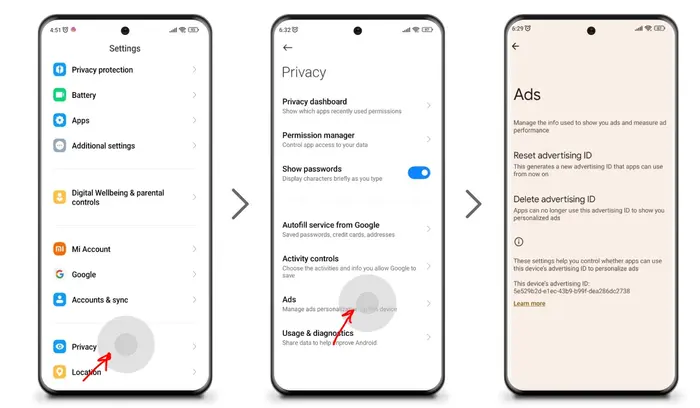
- Device settings allow you to turn off personalized ad tracking on Android, iOS, or desktop.
/wp:list-item
/wp:list
wp:heading {“level”:3}
On PC
/wp:heading
wp:paragraph
To stop Google search ads in Chrome on Windows or Mac, follow these steps:
/wp:paragraph
wp:list {“ordered”:true}
- wp:list-item
- Open Chrome and click the three-dot menu in the top right.
- Select Settings from the menu.
- Click Privacy and Security on the left panel.
- Scroll down to Cookies and site data and enable Block third-party cookies in Incognito to stop tracking during private browsing.
- Return to Privacy and security for complete ad blocking and turn on Block third-party cookies in the main settings.
- If some websites don’t load properly, adjust exceptions in Cookies and site data.
/wp:list-item
wp:list-item
/wp:list-item
wp:list-item
/wp:list-item
wp:list-item
/wp:list-item
wp:list-item
/wp:list-item
wp:list-item
/wp:list-item
/wp:list
wp:paragraph
Change Chrome’s settings for third-party cookies in Privacy or Incognito mode to stop ads. Test various options to get the best protection.
/wp:paragraph
wp:heading {“level”:3}
On Android
/wp:heading
wp:paragraph
To block ads in Chrome on Android:
/wp:paragraph
wp:list {“ordered”:true}
- wp:list-item
- Tap the three-dot menu in Chrome and open Settings.
- Select Privacy.
- Turn on Block third-party cookies to stop tracking across all browsing sessions.
- If you only want private browsing ad blocking, enable Block third-party cookies in the Incognito tab instead.
- If ads still appear, go to the Cookies section under Privacy and enable Block third-party cookies there.
/wp:list-item
wp:list-item
/wp:list-item
wp:list-item
/wp:list-item
wp:list-item
/wp:list-item
wp:list-item
/wp:list-item
/wp:list
wp:paragraph
Adjust these settings as needed. If cookie blocking is too strict, some sites may not load correctly.
/wp:paragraph
wp:heading {“level”:3}
On iPhone or iPad
/wp:heading
wp:paragraph
To block ads in Chrome on iOS:
/wp:paragraph
wp:list {“ordered”:true}
- wp:list-item
- Open Chrome and tap the three-dot menu in the bottom right.
- Go to Settings and choose Privacy.
- Enable Block third-party cookies to prevent tracking during browsing.
- If you only want to block ads in private browsing, turn on Block third-party cookies in the Incognito Tab instead.
- If ads still show, return to Privacy and enable the general Block third-party cookies setting.
/wp:list-item
wp:list-item
/wp:list-item
wp:list-item
/wp:list-item
wp:list-item
/wp:list-item
wp:list-item
/wp:list-item
/wp:list
wp:paragraph
Adjust these settings based on whether you want ad blocking in Incognito mode or across all browsing sessions. Chrome for iOS allows you to manage cookies to control ad tracking effectively.
/wp:paragraph
wp:heading
How to Add an Ad Blocker Extension
/wp:heading
wp:image {“id”:11947,”width”:”652px”,”height”:”auto”,”sizeSlug”:”full”,”linkDestination”:”media”,”align”:”center”}

/wp:image
wp:paragraph
Chrome has built-in ad controls, but an ad blocker extension improves performance. Follow these steps to install one on desktop and mobile.
/wp:paragraph
wp:heading {“level”:3}
On Desktop
/wp:heading
wp:paragraph
To install an ad blocker extension on Windows, Mac, or Chromebook:
/wp:paragraph
wp:list {“ordered”:true}
- wp:list-item
- Open Chrome and click the three-dot menu in the top right. Choose ‘Settings.’
- In the left menu, click ‘Extensions’ to open the extension manager.
- Click the ‘Web Store’ button to access Chrome’s extension marketplace.
- Use the search bar to find an ad blocker like uBlock Origin, AdBlock Plus, or AdBlock.
- Click on the ad blocker you want, then select ‘Add to Chrome’ to install it.
- Confirm the installation when prompted. The extension’s icon will appear next to the address bar.
- Open the Extensions manager to adjust settings like allowlists or extra filters.
/wp:list-item
wp:list-item
/wp:list-item
wp:list-item
/wp:list-item
wp:list-item
/wp:list-item
wp:list-item
/wp:list-item
wp:list-item
/wp:list-item
wp:list-item
/wp:list-item
/wp:list
wp:paragraph
Ad blocker extensions offer more customization for blocking ads. Install one, then modify the settings as needed.
/wp:paragraph
wp:heading {“level”:3}
On Mobile
/wp:heading
wp:paragraph
Chrome for Android and iOS does not fully support extensions, but there are alternatives:
/wp:paragraph
wp:list
- wp:list-item
- For iPhone: Download an ad blocker from the Apple App Store. Search for options like AdBlock or uBlock Origin.
/wp:list-item
/wp:list
wp:paragraph
/wp:paragraph
wp:list
- wp:list-item
- Open the selected ad blocker before using Chrome. It enables ad-blocking filters.
/wp:list-item
/wp:list
wp:paragraph
/wp:paragraph
wp:list
- wp:list-item
- Many users recommend uBlock Origin for its strong blocking ability and lightweight design.
/wp:list-item
/wp:list
wp:paragraph
/wp:paragraph
wp:list
- wp:list-item
- For Android: Chrome for mobile does not support full extensions yet. Users must rely on Chrome’s built-in ad privacy settings until Google allows ad blockers on mobile.
/wp:list-item
/wp:list
wp:paragraph
iPhone users can install App Store ad blockers to filter Chrome better. Android users must wait for future updates to get similar features.
/wp:paragraph
wp:heading
How to Stop Personalized Ads
/wp:heading
wp:paragraph
Another way to reduce ads is by turning off personalized ad tracking. Chrome calls it “Interest-based ads,” which track browsing habits.
/wp:paragraph
wp:paragraph
Follow these steps to turn it off on both desktop and mobile:
/wp:paragraph
wp:heading {“level”:3}
On Desktop
/wp:heading
wp:paragraph
To stop Chrome from using personalized ads on Windows, Mac, or Chromebook:
/wp:paragraph
wp:list {“ordered”:true}
- wp:list-item
- Open Chrome and click the three-dot menu in the top corner to access Settings.
- Select Privacy and Security from the left sidebar.
- Click Cookies and other site data.
- Find Interest-based ads and switch them OFF to block tracking for ads.
- Return to Privacy and security and turn on Send a Do Not Track request with your browsing traffic for extra privacy.
/wp:list-item
wp:list-item
/wp:list-item
wp:list-item
/wp:list-item
wp:list-item
/wp:list-item
wp:list-item
/wp:list-item
/wp:list
wp:paragraph
Turning off Interest-based ads prevents Chrome from analyzing browsing history to tailor ads.
/wp:paragraph
wp:paragraph
Enabling Do Not Track helps prevent websites from collecting similar data. Adjust the settings based on personal preferences.
/wp:paragraph
wp:heading {“level”:3}
On Mobile
/wp:heading
wp:paragraph
To block personalized ad tracking in Chrome on Android or iOS:
/wp:paragraph
wp:list {“ordered”:true}
- wp:list-item
- Open the Chrome app and tap the three-dot menu to enter Settings.
- Choose Privacy from the list.
- Find Allow Chrome personalization and turn it OFF.
/wp:list-item
wp:list-item
/wp:list-item
wp:list-item
/wp:list-item
/wp:list
wp:paragraph
Chrome will no longer use browsing history, location, or other data to customize ads.
/wp:paragraph
wp:list {“ordered”:true,”start”:4}
- wp:list-item
- Scroll down and turn on Send a Do Not Track request with your browsing traffic for extra privacy.
/wp:list-item
/wp:list
wp:paragraph
Websites will receive a request to stop tracking identifiable data.
/wp:paragraph
wp:paragraph
Disabling Allow Chrome personalization blocks targeted ads based on browsing behavior. Enabling Do Not Track strengthens privacy by signaling sites to stop collecting data.
/wp:paragraph
wp:heading
How to Stop Certain Google Ads
/wp:heading
wp:image {“id”:11946,”width”:”652px”,”height”:”auto”,”sizeSlug”:”full”,”linkDestination”:”media”,”align”:”center”}

/wp:image
wp:paragraph
If you want to filter ads from a specific advertiser, such as Facebook or Google, you can use ad-blocking extensions like AdBlock.
/wp:paragraph
wp:heading {“level”:3}
On Desktop
/wp:heading
wp:paragraph
To block ads from particular ad networks like Google or Facebook using a desktop ad blocker:
/wp:paragraph
wp:list
- wp:list-item
- Click the ad blocker icon on your toolbar and choose “Options” or “Settings.”
/wp:list-item
/wp:list
wp:paragraph
/wp:paragraph
wp:list
- wp:list-item
- Look for sections labeled “Custom Filters” or “Blacklisted Sites.”
/wp:list-item
/wp:list
wp:paragraph
/wp:paragraph
wp:list
- wp:list-item
- Enter the ad source domain like googleadservices.com or *.facebook.com.
/wp:list-item
/wp:list
wp:paragraph
/wp:paragraph
wp:list
- wp:list-item
- Select “Add Filter” or a similar option to block ads from that domain.
/wp:list-item
/wp:list
wp:paragraph
/wp:paragraph
wp:list
- wp:list-item
- Check back occasionally to update blocked sources as needed.
/wp:list-item
/wp:list
wp:paragraph
Custom filters help block specific ad domains beyond the default list. They give users more control over the ads that appear.
/wp:paragraph
wp:heading {“level”:3}
On iPhone
/wp:heading
wp:paragraph
To block ads from platforms like Facebook or Google using an ad-blocking browser extension on iPhone:
/wp:paragraph
wp:list
- wp:list-item
- Open your ad blocker app, such as uBlock Origin, and go to the custom filters section.
/wp:list-item
/wp:list
wp:paragraph
/wp:paragraph
wp:list
- wp:list-item
- Enter the domain of the unwanted ad source, like googleadservices.com or *.facebook.com.
/wp:list-item
/wp:list
wp:paragraph
/wp:paragraph
wp:list
- wp:list-item
- Tap “Add” to include it in the blocklist.
/wp:list-item
/wp:list
wp:paragraph
/wp:paragraph
wp:list
- wp:list-item
- Ads from that domain will no longer appear when browsing through Chrome.
/wp:list-item
/wp:list
wp:paragraph
/wp:paragraph
wp:list
- wp:list-item
- Regularly update the blocklist to keep new ad sources from appearing.
/wp:list-item
/wp:list
wp:paragraph
iPhone ad blockers help remove ads from specific domains. Adding new sources as you find them ensures a smoother browsing experience.
/wp:paragraph