Jamie
Jamiewp:paragraph
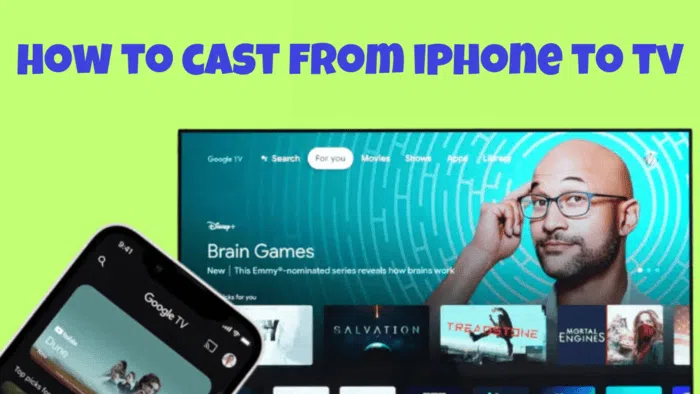
Mirroring your iPhone to a television without using an Apple TV is entirely possible, and there are several ways to accomplish this.
/wp:paragraph
wp:paragraph
Whether you prefer a wireless connection or a wired setup, you can easily display your iPhone’s screen on a larger display.
/wp:paragraph
wp:paragraph
Below, you’ll find detailed instructions for different methods, including wireless mirroring with compatible smart TVs, using an adapter and cable, and leveraging third-party apps for streaming devices.
/wp:paragraph
wp:image {“id”:12303,”width”:”656px”,”height”:”auto”,”sizeSlug”:”full”,”linkDestination”:”media”,”align”:”center”}
/wp:image
wp:heading
Wireless Screen Mirroring to a Smart TV
/wp:heading
wp:paragraph
If you want to mirror your iPhone to a television wirelessly, the easiest way is through AirPlay 2, provided your smart TV supports this feature.
/wp:paragraph
wp:paragraph
Many modern televisions include built-in AirPlay 2 compatibility, but if you are unsure, check the TV’s user manual or the manufacturer’s website.
/wp:paragraph
wp:paragraph
To begin, follow these steps:
/wp:paragraph
wp:list {“ordered”:true}
- wp:list-item
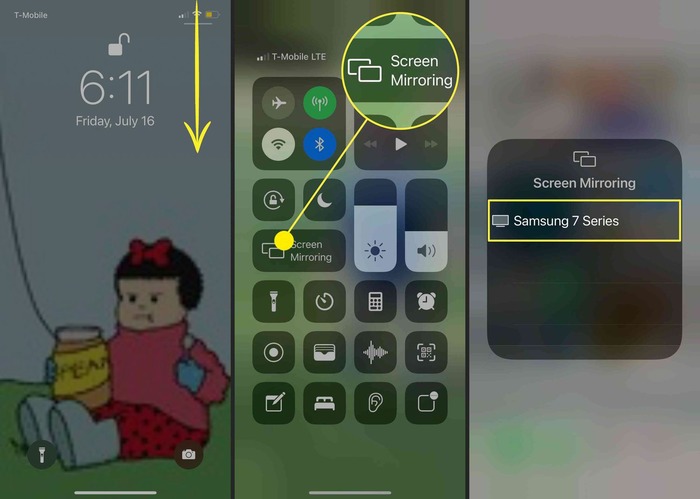
- Ensure Both Devices Are Ready – Confirm that your iPhone and TV are both turned on and connected to the same Wi-Fi network.
- Access the Control Center – On your iPhone, swipe down from the upper right corner of the screen to open the Control Center.
- Select Screen Mirroring – Tap the Screen Mirroring option from the list of available controls.
- Choose Your TV – A list of available AirPlay 2-compatible devices will appear. Select your television from the list.
- Enter the Passcode If Required – If you are connecting for the first time, a passcode may be displayed on your TV. Enter this code on your iPhone to establish the connection.
/wp:list-item
wp:list-item
/wp:list-item
wp:list-item
/wp:list-item
wp:list-item
/wp:list-item
wp:list-item
/wp:list-item
/wp:list
wp:paragraph
Once connected, your iPhone’s display will be mirrored onto your TV screen. To stop mirroring, repeat the same steps and tap Stop Mirroring from the Screen Mirroring menu.
/wp:paragraph
wp:heading
Using a Cable and Adapter for Screen Mirroring
/wp:heading
wp:image {“id”:12305,”width”:”656px”,”height”:”auto”,”sizeSlug”:”full”,”linkDestination”:”media”,”align”:”center”}
/wp:image
wp:paragraph
If your television does not support AirPlay 2 or if you prefer a stable, wired connection, you can use an adapter and a cable to mirror your iPhone’s screen to your TV.
/wp:paragraph
wp:paragraph
Since iPhones do not have standard HDMI or VGA ports, an adapter is necessary to bridge the connection.
/wp:paragraph
wp:heading {“level”:3}
What You’ll Need:
/wp:heading
wp:list
- wp:list-item
- An adapter that matches your iPhone’s port. Depending on your iPhone model, you will need one of the following: wp:list
- wp:list-item
- Lightning Digital AV Adapter – For iPhones with a Lightning port, this adapter allows you to connect an HDMI cable.
- Lightning to VGA Adapter – If your TV has a VGA input instead of HDMI, this is the adapter you need.
- USB-C Digital AV Multiport Adapter – For newer iPhones with a USB-C port, this adapter supports HDMI connections.
- USB-C VGA Multiport Adapter – If your TV only has VGA input and your iPhone has a USB-C port, this is the correct adapter.
/wp:list-item
wp:list-item/wp:list-item
wp:list-item/wp:list-item
wp:list-item/wp:list-item
/wp:list
- An HDMI or VGA cable, depending on your TV’s available ports.
/wp:list-item
wp:list-item
/wp:list-item
/wp:list
wp:heading {“level”:3}
How to Connect:
/wp:heading
wp:list {“ordered”:true}
- wp:list-item
- Attach the Adapter to Your iPhone – Plug the appropriate adapter into your iPhone’s Lightning or USB-C port.
- Connect the Cable to the Adapter – Take an HDMI or VGA cable and plug one end into the adapter.
- Connect the Cable to Your TV – Insert the other end of the HDMI or VGA cable into the corresponding input port on your TV.
- Switch to the Correct Input – Use your TV remote to select the correct video source (HDMI or VGA) from the TV’s input menu.
/wp:list-item
wp:list-item
/wp:list-item
wp:list-item
/wp:list-item
wp:list-item
/wp:list-item
/wp:list
wp:paragraph
Your iPhone’s screen should now be displayed on your television. Keep in mind that this method mirrors everything on your screen exactly as it appears on your phone.
/wp:paragraph
wp:paragraph
If you are watching a movie, the content may not always fill the entire TV screen, depending on the aspect ratio.
/wp:paragraph
wp:heading
Using Third-Party Apps to Mirror Your iPhone to a TV
/wp:heading
wp:image {“id”:12304,”width”:”652px”,”height”:”auto”,”sizeSlug”:”full”,”linkDestination”:”media”,”align”:”center”}
/wp:image
wp:paragraph
For those who use streaming devices like Roku, Chromecast, or Amazon Fire Stick, mirroring your iPhone to your TV is possible using apps designed for these platforms.
/wp:paragraph
wp:heading {“level”:3}
Mirroring to a Roku TV
/wp:heading
wp:list
- wp:list-item
- Download the Roku app from the App Store on your iPhone.
/wp:list-item
/wp:list
wp:paragraph
/wp:paragraph
wp:list
- wp:list-item
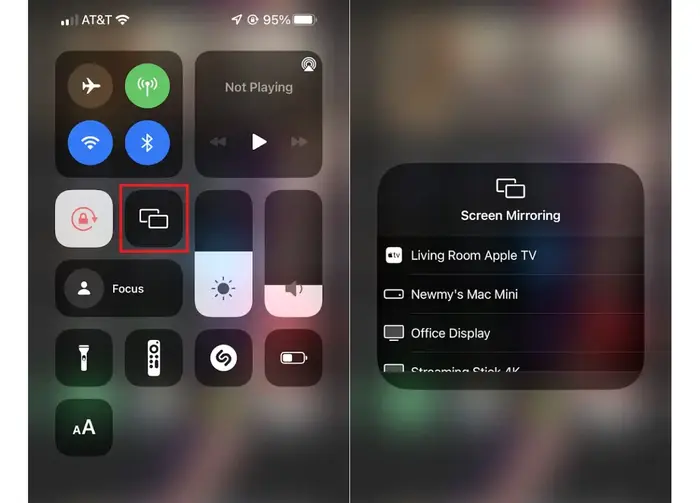
- Open the Control Center on your iPhone and select Screen Mirroring.
/wp:list-item
/wp:list
wp:paragraph
/wp:paragraph
wp:list
- wp:list-item
- Choose your Roku device from the list of available connections.
/wp:list-item
/wp:list
wp:paragraph
/wp:paragraph
wp:list
- wp:list-item
- A code will appear on your TV screen. Enter this code on your iPhone when prompted.
/wp:list-item
/wp:list
wp:heading {“level”:3}
Casting to a Chromecast Device
/wp:heading
wp:list
- wp:list-item
- Ensure that your Chromecast is plugged into your TV and set up through the Google Home app on your iPhone.
/wp:list-item
/wp:list
wp:paragraph
/wp:paragraph
wp:list
- wp:list-item
- Open an app that supports Chromecast, such as YouTube or Netflix.
/wp:list-item
/wp:list
wp:paragraph
/wp:paragraph
wp:list
- wp:list-item
- Tap the Cast icon within the app and select your Chromecast from the available devices.
/wp:list-item
/wp:list
wp:heading {“level”:3}
Mirroring to an Amazon Fire Stick
/wp:heading
wp:list
- wp:list-item
- Download the AirScreen app on your Fire Stick from the Amazon App Store.
/wp:list-item
/wp:list
wp:paragraph
/wp:paragraph
wp:list
- wp:list-item
- Open the AirScreen app and follow the on-screen instructions to set up mirroring.
/wp:list-item
/wp:list
wp:paragraph
/wp:paragraph
wp:list
- wp:list-item
- On your iPhone, open the Control Center and select Screen Mirroring, then choose the Fire Stick from the list.
/wp:list-item
/wp:list
wp:paragraph
AirScreen is a useful option because it works with multiple platforms, including AirPlay and Chromecast, making it a versatile choice if other methods do not provide the desired results.
/wp:paragraph
wp:heading
FAQs
/wp:heading
wp:heading {“level”:3}
How Can I Mirror My iPhone to a Samsung TV?
/wp:heading
wp:paragraph
If you own a Samsung Smart TV manufactured in 2018 or later, it likely supports AirPlay 2.
/wp:paragraph
wp:paragraph
You can mirror your iPhone by opening the Control Center, tapping Screen Mirroring, and selecting your Samsung TV.
/wp:paragraph
wp:paragraph
Some apps also allow direct casting using the AirPlay icon. If AirPlay is not an option, connecting an HDMI cable with an adapter is another way to display your iPhone’s content on the TV.
/wp:paragraph
wp:heading {“level”:3}
How Do I Screen Mirror My iPhone to a Roku TV?
/wp:heading
wp:paragraph
To connect your iPhone to a Roku device, go to the Control Center and tap Screen Mirroring.
/wp:paragraph
wp:paragraph
Select your Roku device from the list, and a code will appear on your TV. Enter this code on your iPhone, and tap OK to complete the connection.
/wp:paragraph
wp:heading {“level”:3}
How Can I Mirror My iPhone to an LG TV?
/wp:heading
wp:paragraph
If you have an LG Smart TV, download the LG TV Screen Mirroring Cast app from the App Store. Launch the app, allow it to search for your LG TV, and select your TV from the list.
/wp:paragraph
wp:paragraph
Tap Start Mirroring, then choose Mirror LG TV > Start Broadcast to begin mirroring your iPhone’s display on your LG television.
/wp:paragraph
wp:heading {“level”:3}
Can I Mirror My iPhone to a TV Without Wi-Fi?
/wp:heading
wp:paragraph
Yes, if Wi-Fi is unavailable, you can use a Lightning Digital AV Adapter or a USB-C Digital AV Adapter to connect your iPhone directly to the TV with an HDMI cable.
/wp:paragraph
wp:paragraph
Plug the adapter into your iPhone, connect the HDMI cable to both the adapter and the TV, and switch to the correct input source on your TV. Your iPhone’s screen will be mirrored instantly.
/wp:paragraph
wp:heading {“level”:3}
How Do I Mirror My iPhone to a Vizio TV?
/wp:heading
wp:paragraph
For Vizio Smart TVs, download the VIZIO Mobile app from the App Store. Open the app, let it detect your TV, and select it from the list.
/wp:paragraph
wp:paragraph
Tap Pair when prompted, and once the pairing process is complete, you can begin casting content from your iPhone to your Vizio TV.
/wp:paragraph
wp:paragraph
By following these different methods, you can mirror your iPhone’s screen to a larger display with or without an Apple TV.
/wp:paragraph
wp:paragraph
Whether you prefer a wireless connection, a wired setup, or an app-based solution, there are several ways to achieve a seamless viewing experience on your television.
/wp:paragraph