Jamie
Jamiewp:paragraph
Cookies play an important role in website functionality, allowing users to stay logged in, remember preferences, and enjoy a personalized browsing experience.
/wp:paragraph
wp:paragraph
If cookies are disabled, some websites may not work correctly or may prevent you from accessing certain features.
/wp:paragraph
wp:paragraph
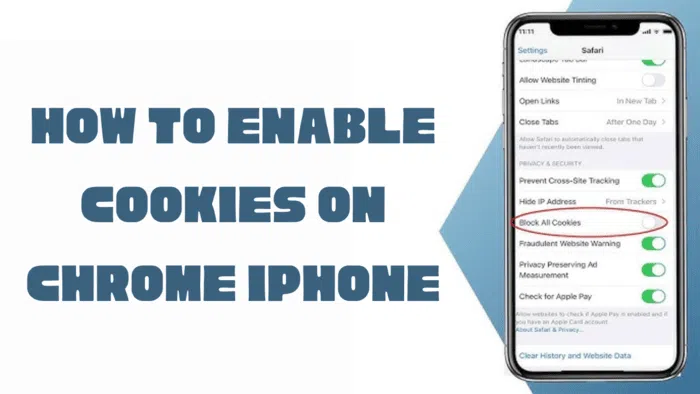
Here’s a step-by-step guide on how to enable cookies in Google Chrome across different devices.
/wp:paragraph
wp:image {“id”:12352,”width”:”676px”,”height”:”auto”,”sizeSlug”:”full”,”linkDestination”:”media”,”align”:”center”}
/wp:image
wp:heading
Enabling Cookies in Google Chrome on Mac
/wp:heading
wp:list {“ordered”:true}
- wp:list-item
- Open Chrome’s settings:
wp:list- wp:list-item
- Click on Chrome in the menu bar at the top of your screen and select Preferences.
- Alternatively, you can quickly access settings by pressing Command + , on your keyboard.
/wp:list-item
wp:list-item/wp:list-item
/wp:list
- Access Privacy Settings:
wp:list- wp:list-item
- Open the browser and click on the three vertical dots located in the upper-right corner.
- From the drop-down menu, scroll down and select Settings.
/wp:list-item
wp:list-item/wp:list-item
/wp:list
- Modify Cookie Preferences:
wp:list- wp:list-item
- In the Privacy and Security section, find and click Site Settings.
- Select Cookies and site data from the available options.
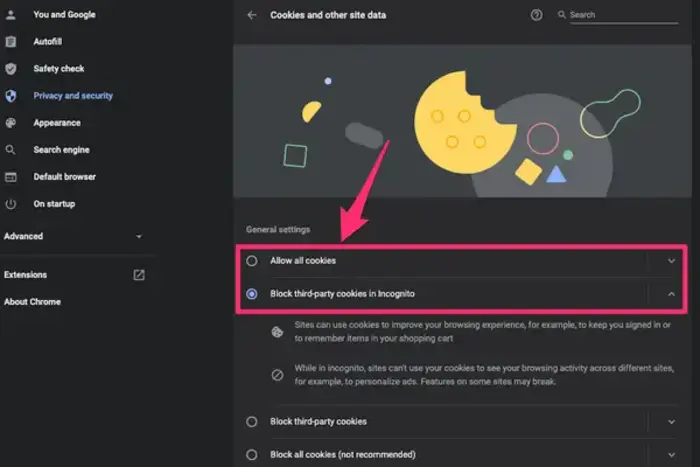
- Choose Allow all cookies to enable cookies completely.
- If you prefer a more restrictive setting while still allowing necessary cookies, opt for Block third-party cookies in Incognito or Block third-party cookies.
/wp:list-item
wp:list-item/wp:list-item
wp:list-item/wp:list-item
wp:list-item/wp:list-item
/wp:list
/wp:list-item
wp:list-item
/wp:list-item
wp:list-item
/wp:list-item
/wp:list
wp:image {“id”:12354,”width”:”640px”,”height”:”auto”,”sizeSlug”:”full”,”linkDestination”:”media”,”align”:”center”}
/wp:image
wp:heading
Enabling Cookies in Google Chrome on Windows
/wp:heading
wp:list {“ordered”:true}
- wp:list-item
- Open Chrome’s settings:
wp:list- wp:list-item
- Click on the three vertical dots in the top-right corner of the browser window to access the menu.
- Select Settings, or press Alt + F as a shortcut.
/wp:list-item
wp:list-item/wp:list-item
/wp:list
- Navigate to Privacy Settings:
wp:list- wp:list-item
- Scroll down until you reach the Privacy and Security section.
- Click on Site Settings.
/wp:list-item
wp:list-item/wp:list-item
/wp:list
- Adjust Cookie Preferences:
wp:list- wp:list-item
- Select Cookies and site data from the list of options.
- To fully enable cookies, choose Allow all cookies.
- If you want to allow cookies while maintaining some level of privacy, you can select Block third-party cookies in Incognito or Block third-party cookies instead.
/wp:list-item
wp:list-item/wp:list-item
wp:list-item/wp:list-item
/wp:list
/wp:list-item
wp:list-item
/wp:list-item
wp:list-item
/wp:list-item
/wp:list
wp:heading
Enabling Cookies in Google Chrome on Android
/wp:heading
wp:list {“ordered”:true}
- wp:list-item
- Launch the Chrome app on your Android device.
- Access the menu:
wp:list- wp:list-item
- Tap the three dots in the upper-right corner of the screen.
- Select Settings from the dropdown menu.
/wp:list-item
wp:list-item/wp:list-item
/wp:list
- Change Cookie Settings:
wp:list- wp:list-item
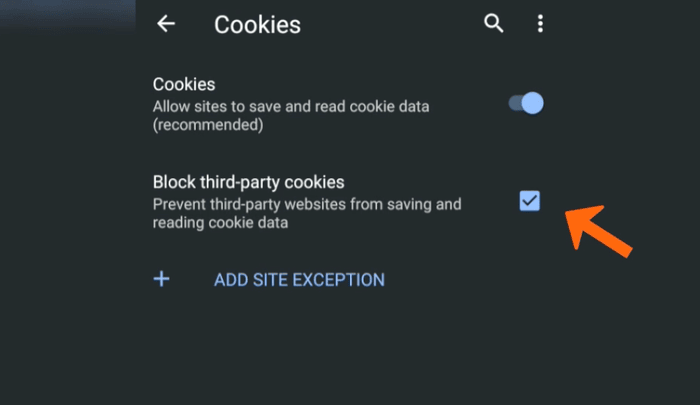
- Scroll down and tap Site settings.
- Select Cookies.
- Enable cookies by choosing Allow all cookies.
- If you want to block third-party cookies for more privacy, you can select Block third-party cookies in Incognito mode or Block third-party cookies.
/wp:list-item
wp:list-item/wp:list-item
wp:list-item/wp:list-item
wp:list-item/wp:list-item
/wp:list
/wp:list-item
wp:list-item
/wp:list-item
wp:list-item
/wp:list-item
/wp:list
wp:image {“id”:12353,”width”:”668px”,”height”:”auto”,”sizeSlug”:”full”,”linkDestination”:”media”,”align”:”center”}
/wp:image
wp:heading
Enabling Cookies in Google Chrome on iOS (iPhone & iPad)
/wp:heading
wp:list {“ordered”:true}
- wp:list-item
- Open the Chrome app on your iPhone or iPad.
- Access Settings:
wp:list- wp:list-item
- Tap the three dots in the bottom-right corner of the screen.
- Select Settings from the menu.
/wp:list-item
wp:list-item/wp:list-item
/wp:list
- Modify Cookie Preferences:
wp:list- wp:list-item
- Tap Content Settings and then select Block Cookies.
- Choose from the following options: wp:list
- wp:list-item
- Allow from Websites I Visit – Allows cookies only from sites you directly interact with.
- Always Allow – Enables all cookies without restrictions.
- Allow from Current Website Only – Blocks third-party cookies but allows those from the site you are visiting.
- Block All Cookies – Prevents all cookies, which may limit website functionality.
/wp:list-item
wp:list-item/wp:list-item
wp:list-item/wp:list-item
wp:list-item/wp:list-item
/wp:list
/wp:list-item
wp:list-item/wp:list-item
/wp:list
/wp:list-item
wp:list-item
/wp:list-item
wp:list-item
/wp:list-item
/wp:list
wp:heading
Managing Cookies After Enabling Them
/wp:heading
wp:paragraph
Once cookies are enabled, you might want to manage them periodically for privacy reasons or to troubleshoot website issues.
/wp:paragraph
wp:paragraph
Websites store cookies on your device, which can accumulate over time and affect browser performance.
/wp:paragraph
wp:paragraph
Clearing cookies occasionally can help maintain privacy and ensure smooth browsing.
/wp:paragraph
wp:paragraph
To learn how to delete cookies from Google Chrome, check out our detailed guide on how to clear cookies in Chrome.
/wp:paragraph