Jamie
Jamiewp:paragraph
Grasping how websites function holds great value for creators, developers, and everyday users.
/wp:paragraph
wp:paragraph
The Element Inspector tool plays a key role in exploring the framework of a webpage.
/wp:paragraph
wp:paragraph
Although primarily associated with desktop browsers, you can also access this feature on Android devices.
/wp:paragraph
wp:paragraph
Whether you’re looking to tweak the appearance of a page, troubleshoot issues, or improve your coding skills, using the element inspection tool on Android can support these tasks.
/wp:paragraph
wp:paragraph
This guide will lead you through utilizing this tool on Android and discuss its practical applications and benefits.
/wp:paragraph
wp:image {“id”:12208,”width”:”666px”,”height”:”auto”,”sizeSlug”:”full”,”linkDestination”:”media”,”align”:”center”}

/wp:image
wp:heading
What Is Inspect Element?
/wp:heading
wp:paragraph
Inspect Element enables users to examine and adjust the underlying code of a webpage, such as markup, styling, and scripting elements.
/wp:paragraph
wp:paragraph
Web developers, testers, and designers utilize it to explore and troubleshoot the behavior and layout of a site.
/wp:paragraph
wp:paragraph
Inspecting an element allows you to examine different parts of a webpage, including:
/wp:paragraph
wp:list
- wp:list-item
- HTML: Establishes the basic structure of the webpage.
/wp:list-item
/wp:list
wp:paragraph
/wp:paragraph
wp:list
- wp:list-item
- CSS: Manages the visual presentation and layout.
/wp:list-item
/wp:list
wp:paragraph
/wp:paragraph
wp:list
- wp:list-item
- JavaScript: Enables interactive features and dynamic behavior.
/wp:list-item
/wp:list
wp:paragraph
Inspecting components on Android boosts mobile site efficiency, addresses issues, and assesses the overall design.
/wp:paragraph
wp:heading
Why Use Inspect Element?
/wp:heading
wp:image {“id”:12207,”width”:”650px”,”height”:”auto”,”sizeSlug”:”full”,”linkDestination”:”media”,”align”:”center”}
/wp:image
wp:paragraph
Users frequently utilize the Inspect Element feature for various tasks, especially on Android devices.
/wp:paragraph
wp:list
- wp:list-item
- Fixing and Testing Issues – Developers use it to find and fix problems with web pages, like layout errors, broken designs, or JavaScript bugs. On mobile, it helps test how a website looks and works on different devices.
/wp:list-item
/wp:list
wp:paragraph
/wp:paragraph
wp:list
- wp:list-item
- Checking Mobile Design – Optimizing for mobile boosts user engagement. By examining components on an Android device, you can observe how a page adjusts to different screen dimensions and tweak the CSS instantly.
/wp:list-item
/wp:list
wp:paragraph
/wp:paragraph
wp:list
- wp:list-item
- Learning Web Development – New users learn how websites work. Editing HTML and CSS shows how each part changes a page.
/wp:list-item
/wp:list
wp:paragraph
/wp:paragraph
wp:list
- wp:list-item
- Modifying Web Pages – You can temporarily change a webpage’s appearance, such as adjusting font sizes, colors, or layouts, without making permanent changes.
/wp:list-item
/wp:list
wp:paragraph
/wp:paragraph
wp:list
- wp:list-item
- Improving SEO – Examining a website’s elements can highlight SEO concerns, such as absent metadata, oversized images, or poorly structured URLs. Resolving these issues can improve mobile device site performance and increase search results visibility.
/wp:list-item
/wp:list
wp:heading
Advantages of Inspecting Elements on Android
/wp:heading
wp:list
- wp:list-item
- Real-Time Testing and Troubleshooting – View changes instantly and resolve layout issues or bugs directly on your device.
/wp:list-item
/wp:list
wp:paragraph
/wp:paragraph
wp:list
- wp:list-item
- Better User Experience – Recognizing issues specific to mobile devices, such as slow loading times, ineffective layouts, or malfunctioning elements, plays a crucial role in enhancing user experience.
/wp:list-item
/wp:list
wp:paragraph
/wp:paragraph
wp:list
- wp:list-item
- Mobile Compatibility – While many websites design for desktops, most users browse on their phones. Ensuring that users check and optimize elements adequately ensures a website functions effectively on mobile devices.
/wp:list-item
/wp:list
wp:paragraph
/wp:paragraph
wp:list
- wp:list-item
- Browser-Specific Testing – Webpages may look different in various browsers. Inspecting elements on Android helps check how a site appears in Chrome, Firefox, or Edge.
/wp:list-item
/wp:list
wp:paragraph
/wp:paragraph
wp:list
- wp:list-item
- Beginner’s Learning Resource – Studying website structure and styling on Android provides hands-on experience with responsive design and web development.
/wp:list-item
/wp:list
wp:heading
How to Inspect Elements on Android?
/wp:heading
wp:image {“id”:12206,”width”:”666px”,”height”:”auto”,”sizeSlug”:”full”,”linkDestination”:”media”,”align”:”center”}
/wp:image
wp:paragraph
Inspecting elements could be essential if you need to evaluate a site’s adaptability, resolve issues, or explore web design. Here’s a guide to help you:
/wp:paragraph
wp:heading {“level”:3}
Method 1: Using Chrome DevTools on a Desktop
/wp:heading
wp:paragraph
Connect your Android phone to a PC and open Chrome DevTools to analyze components. Start the inspection by launching the developer tools in Chrome on your computer.
/wp:paragraph
wp:paragraph
Steps to Set Up
/wp:paragraph
wp:list {“ordered”:true}
- wp:list-item
- Turn on Developer Settings in Android wp:list
- wp:list-item
- Open the Settings menu and select “About Phone.”
- Press the Build Number seven times until a notification says, “You are now a developer.”
- Next, go to Settings → System → Developer Options.
- Turn on the USB Debugging option.
/wp:list-item
wp:list-item/wp:list-item
wp:list-item/wp:list-item
wp:list-item/wp:list-item
/wp:list
- Install Chrome DevTools on a Desktop wp:list
- wp:list-item
- Link your Android device to the computer via a USB cable.
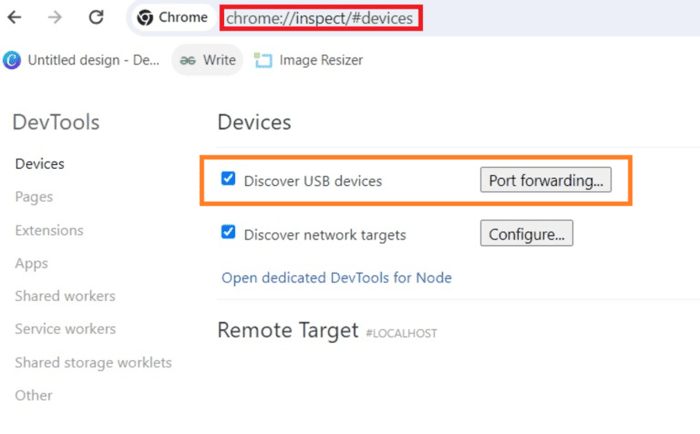
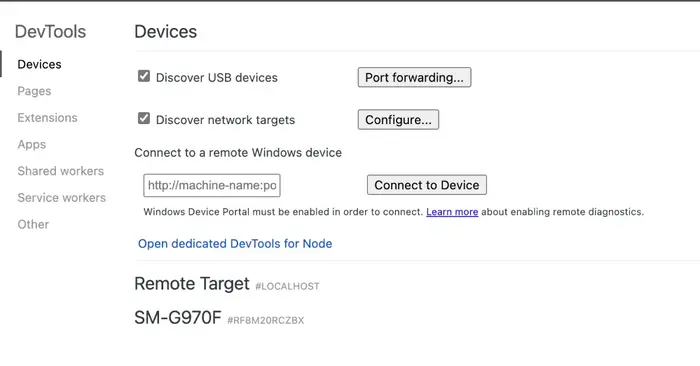
- Launch Chrome on your computer and type chrome://inspect in the URL field.
- Navigate to the website you’d like to inspect on your phone.
- Chrome DevTools will display your phone and its open tabs.
- Select Inspect for the tab you wish to analyze.
/wp:list-item
wp:list-item/wp:list-item
wp:list-item/wp:list-item
wp:list-item/wp:list-item
wp:list-item/wp:list-item
/wp:list
/wp:list-item
wp:list-item
/wp:list-item
/wp:list
wp:paragraph
What You Are Capable of Doing
/wp:paragraph
wp:list
- wp:list-item
- Examine and adjust HTML, CSS, and JavaScript.
- Access the Elements section to inspect the page framework.
- Assess responsiveness using the Device Panel.
- Troubleshoot JavaScript by setting breakpoints.
- Evaluate network behavior and performance.
/wp:list-item
wp:list-item
/wp:list-item
wp:list-item
/wp:list-item
wp:list-item
/wp:list-item
wp:list-item
/wp:list-item
/wp:list
wp:paragraph
Pros
/wp:paragraph
wp:list
- wp:list-item
- Complete access to Chrome DevTools.
- Instant debugging and modifications.
/wp:list-item
wp:list-item
/wp:list-item
/wp:list
wp:paragraph
Cons
/wp:paragraph
wp:list
- wp:list-item
- It needs a computer and a USB cable to connect.
/wp:list-item
/wp:list
wp:heading {“level”:3}
Method 2: Use Browser Developer Tools on Android
/wp:heading
wp:paragraph
Android browsers offer built-in developer tools, allowing you to analyze elements directly without needing a computer.
/wp:paragraph
wp:heading {“level”:4}
Using Firefox Browser (Mobile):
/wp:heading
wp:list {“ordered”:true}
- wp:list-item
- First, get the Firefox Developer Version from the Google Play Store.
- Afterward, visit the site you wish to analyze.
- Tap the menu icon in the top-right section.
- Next, select the Developer Tools and choose an option like Element Inspector or Log Viewer.
/wp:list-item
wp:list-item
/wp:list-item
wp:list-item
/wp:list-item
wp:list-item
/wp:list-item
/wp:list
wp:paragraph
Firefox lets you swiftly examine webpage structure, styling, and scripting directly on your Android phone.
/wp:paragraph
wp:heading {“level”:4}
Using Kiwi Browser (Mobile):
/wp:heading
wp:paragraph
The Kiwi Browser uses Chromium as its foundation and includes developer tools.
/wp:paragraph
wp:list {“ordered”:true}
- wp:list-item
- Get the Kiwi Browser from the Play Store.
- Open the app and enter chrome://inspect/#devices in the address field.
- Visit the site you want to analyze.
- Tap the menu icon and activate the Developer Options.
- A tool similar to Chrome’s developer console will appear to inspect the page elements.
/wp:list-item
wp:list-item
/wp:list-item
wp:list-item
/wp:list-item
wp:list-item
/wp:list-item
wp:list-item
/wp:list-item
/wp:list
wp:paragraph
Pros:
/wp:paragraph
wp:list
- wp:list-item
- No computer or external drive connection required.
/wp:list-item
/wp:list
wp:paragraph
/wp:paragraph
wp:list
- wp:list-item
- Essential developer tools are available on mobile.
/wp:list-item
/wp:list
wp:paragraph
Cons:
/wp:paragraph
wp:list
- wp:list-item
- There are fewer features than Chrome DevTools on a computer.
/wp:list-item
/wp:list
wp:heading {“level”:3}
Method 3: Using Third-Party Apps
/wp:heading
wp:paragraph
You are able to examine elements on Android swiftly with the help of third-party applications, bypassing the need for a browser or computer.
/wp:paragraph
wp:heading {“level”:4}
1. VT View Source
/wp:heading
wp:paragraph
Purpose: Displays the underlying HTML content of any site.
/wp:paragraph
wp:paragraph
Instructions: Enter the site’s web address in the app to view its HTML, styling, and scripting.
/wp:paragraph
wp:heading {“level”:4}
2. Inspect and Edit HTML Live
/wp:heading
wp:paragraph
Purpose: Enables you to examine and alter HTML right on a site.
/wp:paragraph
wp:paragraph
Instructions: Launch the application, input the webpage link, and examine or alter elements.
/wp:paragraph
wp:heading {“level”:4}
3. Web Tools: Web Developer Tools
/wp:heading
wp:paragraph
Purpose: Presents a variety of internet creation resources, including Hypertext Markup Language, Cascading Style Sheets, and JavaScript examination and alteration.
/wp:paragraph
wp:paragraph
Instructions: Input the website address to examine or resolve issues with the page.
/wp:paragraph
wp:paragraph
Pros:
/wp:paragraph
wp:list
- wp:list-item
- There’s no requirement for a computer.
/wp:list-item
/wp:list
wp:paragraph
/wp:paragraph
wp:list
- wp:list-item
- Fast and straightforward for basic HTML/CSS editing.
/wp:list-item
/wp:list
wp:paragraph
Cons:
/wp:paragraph
wp:list
- wp:list-item
- Fewer features than Chrome DevTools.
/wp:list-item
/wp:list
wp:paragraph
/wp:paragraph
wp:list
- wp:list-item
- Not suitable for complex debugging or advanced web apps.
/wp:list-item
/wp:list
wp:heading {“level”:3}
Method 4: Inspecting Elements with ADB Remote Debugging (For Advanced Users)
/wp:heading
wp:paragraph
Skilled users and those working with hybrid applications can employ Android Debug Bridge (ADB) to analyze elements and resolve issues with apps on Android devices.
/wp:paragraph
wp:paragraph
Steps:
/wp:paragraph
wp:list {“ordered”:true}
- wp:list-item
- Set Up ADB on Your Computer – Download and configure Android software development kit utilities from the Android developer webpage.
- Activate USB Debugging – Turn on Developer Settings and enable USB Debugging following the steps in Method 1.
- Link the Device – Connect your Android device to the system using a USB cable.
- Execute ADB Commands – Run a variety of ADB instructions to interact with the device and analyze elements in both browser-based and app-based environments.
/wp:list-item
wp:list-item
/wp:list-item
wp:list-item
/wp:list-item
wp:list-item
/wp:list-item
/wp:list
wp:paragraph
Pros:
/wp:paragraph
wp:list
- wp:list-item
- Essential for diagnosing issues in both online and offline applications.
/wp:list-item
/wp:list
wp:paragraph
/wp:paragraph
wp:list
- wp:list-item
- It gives full access to the Android system for debugging and testing tasks.
/wp:list-item
/wp:list
wp:paragraph
Cons:
/wp:paragraph
wp:list
- wp:list-item
- Requires familiarity with Android Debug Bridge and terminal-based utilities to operate effectively.
/wp:list-item
/wp:list
wp:paragraph
/wp:paragraph
wp:list
- wp:list-item
- It is more specialized, making it appropriate for experienced users.
/wp:list-item
/wp:list
wp:heading
Tips for Using Inspect Element on Android
/wp:heading
wp:list
- wp:list-item
- Learn Web Development Tools – Become familiar with utilities such as markup language, style sheets, and scripting code. These help you analyze websites quickly.
/wp:list-item
/wp:list
wp:paragraph
/wp:paragraph
wp:list
- wp:list-item
- Leverage Chrome Remote Debugging for In-Depth Analysis – Chrome’s developer tools provide powerful features such as a JavaScript console and network monitoring. These tools are ideal for troubleshooting intricate pages on Android.
/wp:list-item
/wp:list
wp:paragraph
/wp:paragraph
wp:list
- wp:list-item
- Test Mobile Compatibility – Assess websites on Android devices with different screen sizes. Verify that the layout is mobile-friendly and displays correctly on all devices.
/wp:list-item
/wp:list
wp:paragraph
/wp:paragraph
wp:list
- wp:list-item
- Perform Short-Term Modifications – Any alterations you apply through Inspect Element are not enduring. Leverage this function to explore different designs, hues, or arrangements without altering the webpage.
/wp:list-item
/wp:list
wp:paragraph
/wp:paragraph
wp:list
- wp:list-item
- Give External Applications a Try for Swift Modifications – Use tools like Inspect and Modify HTML Live for rapid assessments or simple changes. These applications are straightforward and well-suited for everyday users or creators who don’t require advanced functionalities.
/wp:list-item
/wp:list
wp:paragraph
/wp:paragraph
wp:list
- wp:list-item
- Preserve Code Fragments for Future Reference – Retain helpful code fragments while testing designs or functions. You can integrate them into your project later for lasting revisions.
/wp:list-item
/wp:list