Jamie
Jamiewp:paragraph
Typically, your iPhone’s display adjusts by tilting the device. The screen transitions between vertical and horizontal layouts if the rotation lock is off.
/wp:paragraph
wp:paragraph
Watching a video in full-screen mode on platforms like YouTube or Apple TV+ can also trigger a shift in orientation.
/wp:paragraph
wp:paragraph
However, an alternative lets you modify the screen direction without altering your phone’s position.
/wp:paragraph
wp:paragraph
This option proves handy when the device rests on a surface, or you cannot physically rotate it. Below is a step-by-step manual on how to enable this feature.
/wp:paragraph
wp:image {“id”:12309,”width”:”650px”,”height”:”auto”,”sizeSlug”:”full”,”linkDestination”:”media”,”align”:”center”}
/wp:image
wp:heading
Adjusting the Screen Orientation Without Moving the iPhone
/wp:heading
wp:paragraph
Apple provides an accessibility function that allows users to modify screen positioning without tilting their phones.
/wp:paragraph
wp:paragraph
This makes orientation control more convenient.
/wp:paragraph
wp:paragraph
Follow these instructions to activate this setting:
/wp:paragraph
wp:list {“ordered”:true}
- wp:list-item
- Launch Settings on your iPhone.
- Scroll and tap Accessibility.
- Find and select Touch.
- Enable AssistiveTouch.
/wp:list-item
wp:list-item
/wp:list-item
wp:list-item
/wp:list-item
wp:list-item
/wp:list-item
/wp:list
wp:paragraph
After enabling AssistiveTouch, you can manually adjust the screen’s positioning through the virtual menu.
/wp:paragraph
wp:heading
Rotating the Display Using AssistiveTouch
/wp:heading
wp:image {“id”:12311,”width”:”638px”,”height”:”auto”,”sizeSlug”:”full”,”linkDestination”:”media”,”align”:”center”}
/wp:image
wp:paragraph
Once AssistiveTouch is switched on, use these steps to alter the screen layout:
/wp:paragraph
wp:list {“ordered”:true}
- wp:list-item
- Open an application where you wish to change the view.
- Tap the AssistiveTouch button on the display.
- Select Device from the menu.
- Choose Rotate Screen.
- Pick one of the four available orientations: wp:list
- wp:list-item
- Portrait (Standard upright format)
- Portrait Upside Down (Inverted vertical mode)
- Landscape Left (Horizontal view with buttons positioned on the right side)
- Landscape Right (Horizontal view with buttons aligned on the left side)
/wp:list-item
wp:list-item/wp:list-item
wp:list-item/wp:list-item
wp:list-item/wp:list-item
/wp:list
/wp:list-item
wp:list-item
/wp:list-item
wp:list-item
/wp:list-item
wp:list-item
/wp:list-item
wp:list-item
/wp:list-item
/wp:list
wp:paragraph
Repeat the process and select the original orientation to reset the screen layout.
/wp:paragraph
wp:paragraph
Alternatively, physically turning the device will also restore its default alignment.
/wp:paragraph
wp:heading
Preventing Automatic Screen Rotation
/wp:heading
wp:image {“id”:12310,”width”:”602px”,”height”:”auto”,”sizeSlug”:”full”,”linkDestination”:”media”,”align”:”center”}
/wp:image
wp:paragraph
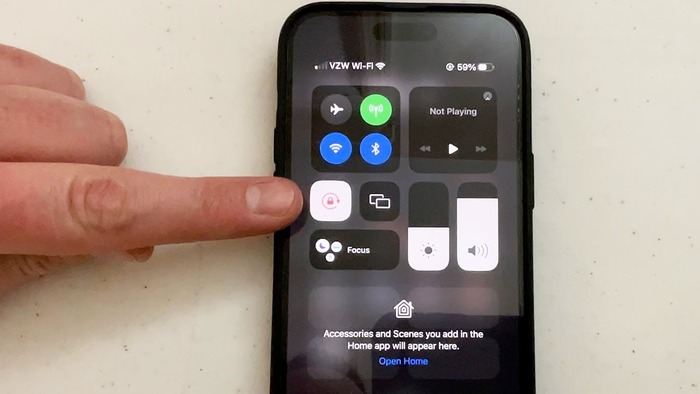
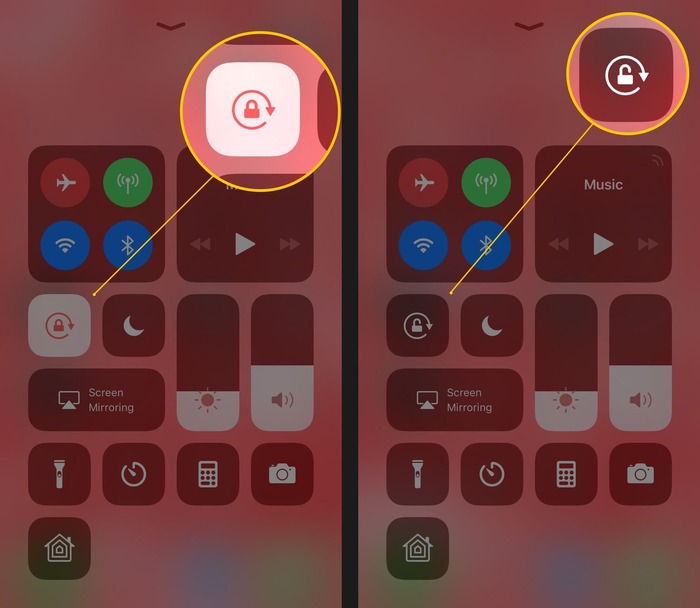
If you want to stop the screen from automatically shifting, lock the orientation with these steps:
/wp:paragraph
wp:list
- wp:list-item
- Swipe down from the upper-right corner to access the Control Center.
/wp:list-item
/wp:list
wp:paragraph
/wp:paragraph
wp:list
- wp:list-item
- Tap the Rotation Lock symbol (a padlock with a circular arrow).
/wp:list-item
/wp:list
wp:paragraph
/wp:paragraph
wp:list
- wp:list-item
- When enabled, the screen will remain fixed in its current layout.
/wp:list-item
/wp:list
wp:paragraph
/wp:paragraph
wp:list
- wp:list-item
- To disable it, tap the icon once more.
/wp:list-item
/wp:list
wp:heading
When to Use Manual Rotation
/wp:heading
wp:paragraph
Utilizing manual orientation adjustment can be beneficial in several instances:
/wp:paragraph
wp:table
| Scenario | Advantage |
| Phone placed on a surface | Change the display position without shifting the device |
| Using it while lying down | Prevents unwanted auto-rotation |
| Watching media content | Set a fixed layout for better viewing |
| Accessibility needs | Simplifies screen control for users with mobility challenges |
/wp:table
wp:paragraph
By enabling this function, you gain greater flexibility over your screen layout without depending on automatic transitions.
/wp:paragraph
wp:heading
Conclusion
/wp:heading
wp:paragraph
If unwanted screen rotation is an issue, enabling AssistiveTouch provides an efficient solution. It allows you to manually reposition the display without physically moving the iPhone.
/wp:paragraph
wp:paragraph
Enrolling the Rotation Lock can prevent the screen from switching layouts when the device tilts.
/wp:paragraph
wp:paragraph
Try out this feature to enhance your device usage!
/wp:paragraph