Jamie
Jamiewp:paragraph
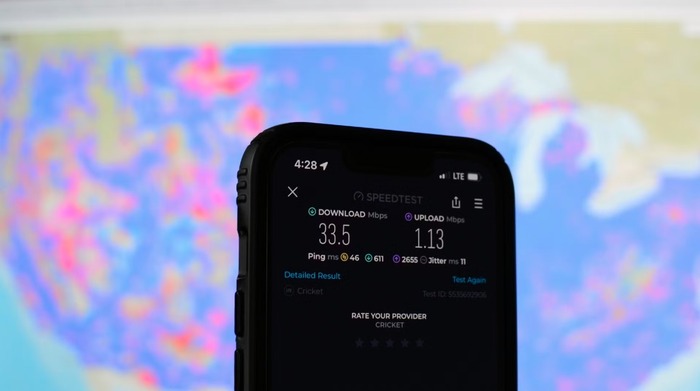
A sluggish internet connection on your smartphone can be incredibly annoying, especially when you’re trying to browse or stream. Several factors could be responsible if your mobile data isn’t performing well. This manual will explain how to test your internet health and enhance it for a smoother experience.
/wp:paragraph
wp:image {“id”:12233,”sizeSlug”:”full”,”linkDestination”:”media”,”align”:”center”}
/wp:image
wp:heading
What Causes Slow Mobile Data?
/wp:heading
wp:paragraph
If your phone struggles with slow data, it might be due to a weak signal, excessive traffic on the network, or too many apps running simultaneously. Here are some common reasons for reduced mobile internet performance:
/wp:paragraph
wp:list
- wp:list-item
- Weak signal in your current location
- Overloaded network due to multiple users
- Excessive background apps or open browser tabs
- Corrupt or outdated cache files
- Shared mobile hotspot consuming bandwidth
- Incorrect network configurations
- Presence of harmful software on your device
/wp:list-item
wp:list-item
/wp:list-item
wp:list-item
/wp:list-item
wp:list-item
/wp:list-item
wp:list-item
/wp:list-item
wp:list-item
/wp:list-item
wp:list-item
/wp:list-item
/wp:list
wp:heading
Checking Your Signal Strength
/wp:heading
wp:paragraph
A weak signal significantly impacts data speed. Moving to an area with better reception or switching to a Wi-Fi connection might help. You can check signal strength using decibel-milliwatts (dBm), which indicate reception quality:
/wp:paragraph
wp:table
| Signal Strength (dBm) | Quality |
| -50 to -79 | Excellent |
| -80 to -89 | Good |
| -90 to -107 | Average |
| -108 to -114 | Weak |
| < -120 | No Signal |
/wp:table
wp:paragraph
These values vary based on service providers.
/wp:paragraph
wp:heading {“level”:3}
How to Check on Android:
/wp:heading
wp:list
- wp:list-item
- Open Settings and go to About Phone.
- Tap Status, then Network > SIM.
- Some devices include a diagnostic tool in the Mobile Networks section.
/wp:list-item
wp:list-item
/wp:list-item
wp:list-item
/wp:list-item
/wp:list
wp:heading {“level”:3}
How to Check on iPhone:
/wp:heading
wp:list
- wp:list-item
- Open the Phone app.
- Dial *3001#12345#* and press call.
- Select LTE or Serving Cell Measurements to view details.
/wp:list-item
wp:list-item
/wp:list-item
wp:list-item
/wp:list-item
/wp:list
wp:heading
Network Congestion Issues
/wp:heading
wp:paragraph
A slow connection may result from an overloaded network, especially during peak hours. If your home internet is sluggish, multiple devices could use bandwidth simultaneously. Access your router settings through its IP address to optimize usage and enable Quality of Service (QoS). This prioritizes essential tasks like video conferencing.
/wp:paragraph
wp:heading
Background Apps Consuming Data
/wp:heading
wp:paragraph
Having multiple applications running in the background can strain your connection. Close unnecessary apps and browser tabs to free up bandwidth.
/wp:paragraph
wp:heading
Cache-Related Slowdowns
/wp:heading
wp:image {“id”:12232,”sizeSlug”:”full”,”linkDestination”:”media”,”align”:”center”}

/wp:image
wp:paragraph
Your browser stores data to load websites faster. However, outdated or corrupt files can slow things down. Clear the cache regularly to improve performance.
/wp:paragraph
wp:heading {“level”:3}
Signs That You Need to Clear Cache:
/wp:heading
wp:list
- wp:list-item
- Web pages loading incompletely
- Incorrectly formatted content
- Misplaced images
- Login difficulties
/wp:list-item
wp:list-item
/wp:list-item
wp:list-item
/wp:list-item
wp:list-item
/wp:list-item
/wp:list
wp:heading
Mobile Hotspot Usage
/wp:heading
wp:paragraph
Using your device as a hotspot can slow your connection, especially if multiple users are connected. Ensure your hotspot is not unintentionally active. Look for the hotspot icon on the status bar on Android to check for connected devices.
/wp:paragraph
wp:heading
Resetting Network Preferences
/wp:heading
wp:paragraph
Misconfigured or outdated settings can affect data speed. Resetting network preferences might help restore performance.
/wp:paragraph
wp:heading
Possible Malware Infection
/wp:heading
wp:paragraph
Harmful software on your phone can slow internet speed by using data in the background. Spyware may be transmitting information without your knowledge. Running a security scan can detect and remove threats.
/wp:paragraph
wp:heading
Why Is 5G Sometimes Slow?
/wp:heading
wp:paragraph
Although 5G is designed for high-speed connectivity, physical barriers like walls can disrupt its short-range signals. Additionally, 5G infrastructure is still expanding, leading to inconsistent coverage.
/wp:paragraph
wp:heading
Ways to Enhance Mobile Data Speed
/wp:heading
wp:paragraph
If you experience slow internet regularly, try these solutions:
/wp:paragraph
wp:list
- wp:list-item
- Restart your smartphone
- Enable and disable airplane mode
- Reset network configurations
- Remove and reinsert your SIM card
- Close unused apps consuming data
- Disable background applications
- Pause resource-intensive applications
- Secure your hotspot connection
- Shut down unnecessary browser tabs
- Use an ad-blocking tool
- Clear browser cache
- Activate reader mode in your browser
- Switch to a Wi-Fi network if possible
- Run a malware scan
/wp:list-item
wp:list-item
/wp:list-item
wp:list-item
/wp:list-item
wp:list-item
/wp:list-item
wp:list-item
/wp:list-item
wp:list-item
/wp:list-item
wp:list-item
/wp:list-item
wp:list-item
/wp:list-item
wp:list-item
/wp:list-item
wp:list-item
/wp:list-item
wp:list-item
/wp:list-item
wp:list-item
/wp:list-item
wp:list-item
/wp:list-item
wp:list-item
/wp:list-item
/wp:list
wp:heading {“level”:3}
Restart Your Device
/wp:heading
wp:paragraph
Rebooting your phone can help fix slow internet performance.
/wp:paragraph
wp:heading {“level”:4}
How to Reboot:
/wp:heading
wp:list
- wp:list-item
- Android: Press the power key, then select “Reboot” or “Shut Down.” If switched off, wait briefly before turning it back on.
- iPhone: Press and hold the power key, slide to shut down, pause for a moment, then press the power key again to power it back on.
/wp:list-item
wp:list-item
/wp:list-item
/wp:list
wp:heading {“level”:3}
Toggle Airplane Mode
/wp:heading
wp:paragraph
Switching airplane mode on and off can refresh your network signal.
/wp:paragraph
wp:heading {“level”:4}
Steps:
/wp:heading
wp:list
- wp:list-item
- Android: Open Quick Settings, tap the airplane symbol to activate, wait a moment, and switch it off.
- iPhone: Open Control Center, tap the airplane symbol to enable, then tap it again to disable.
/wp:list-item
wp:list-item
/wp:list-item
/wp:list
wp:heading {“level”:3}
Restore Network Settings
/wp:heading
wp:paragraph
If your connection remains sluggish, resetting network preferences might resolve the issue. Keep in mind this will erase saved Wi-Fi credentials.
/wp:paragraph
wp:heading {“level”:4}
Instructions:
/wp:heading
wp:list
- wp:list-item
- Android: Go to Settings > System > Reset options > Reset Wi-Fi, mobile & Bluetooth > Confirm.
- iPhone: Go to Settings > General > Transfer or Reset iPhone > Reset > Reset Network Settings > Enter passcode > Confirm.
/wp:list-item
wp:list-item
/wp:list-item
/wp:list
wp:heading {“level”:3}
Take Out and Reinsert the SIM Card
/wp:heading
wp:paragraph
Removing and reinserting the SIM card can help reestablish a stable network. Try using the SIM on another phone before reinserting it.
/wp:paragraph
wp:heading {“level”:3}
Monitor High-Data Usage Apps
/wp:heading
wp:paragraph
Some applications consume a large amount of data, impacting performance. Restricting them may improve speeds.
/wp:paragraph
wp:heading {“level”:4}
How to Manage Data-Intensive Apps:
/wp:heading
wp:list
- wp:list-item
- Android: Go to Settings > Data usage > Identify and limit apps using excessive data.
- iPhone: Go to Settings > Cellular > Check data consumption and disable unnecessary apps.
/wp:list-item
wp:list-item
/wp:list-item
/wp:list
wp:heading {“level”:3}
Limit Background Data Consumption
/wp:heading
wp:paragraph
Apps running in the background can slow down connectivity.
/wp:paragraph
wp:heading {“level”:4}
How to Disable Background Data:
/wp:heading
wp:list
- wp:list-item
- Android: Settings > Apps > Choose an app > Mobile data > Turn off background data. Alternatively, enable Data Saver under Data Usage.
- iPhone: Settings > General > Background App Refresh > Turn off for specific or all apps.
/wp:list-item
wp:list-item
/wp:list-item
/wp:list
wp:heading {“level”:3}
Protect Your Mobile Hotspot
/wp:heading
wp:paragraph
An unsecured hotspot may be used by others, reducing your bandwidth.
/wp:paragraph
wp:heading {“level”:4}
Securing Your Hotspot:
/wp:heading
wp:list
- wp:list-item
- Android: Press and hold the hotspot icon in Quick Settings > Set a strong passcode & modify SSID.
- iPhone: Go to Settings > Personal Hotspot > Change the password and turn off “Allow Others to Join.”
/wp:list-item
wp:list-item
/wp:list-item
/wp:list
wp:heading {“level”:3}
Close Extra Apps and Browser Tabs
/wp:heading
wp:paragraph
Having too many open applications or tabs may reduce browsing speed.
/wp:paragraph
wp:heading {“level”:4}
Closing Apps:
/wp:heading
wp:list
- wp:list-item
- Android: Press the Recent Apps button and swipe away unnecessary apps.
- iPhone: Swipe up from the bottom of the screen, then close unused applications.
/wp:list-item
wp:list-item
/wp:list-item
/wp:list
wp:heading {“level”:4}
Closing Tabs:
/wp:heading
wp:list
- wp:list-item
- Chrome: Tap the square button and shut down extra tabs.
- Safari: Tap the tabs icon, swipe left on a tab to close it, or long-press the tab switcher to close all tabs.
/wp:list-item
wp:list-item
/wp:list-item
/wp:list
wp:heading {“level”:3}
Use an Ad Blocker
/wp:heading
wp:paragraph
Advertisements consume bandwidth and slow down page loading times. Using a browser with built-in ad blocking can enhance speeds.
/wp:paragraph
wp:heading {“level”:3}
Delete Browser Cache
/wp:heading
wp:paragraph
Accumulated cache files may slow down browsing. Clearing them can boost performance.
/wp:paragraph
wp:heading {“level”:4}
How to Clear Cache:
/wp:heading
wp:list
- wp:list-item
- Chrome (Android): Open Chrome > Menu (⋮) > History > Clear browsing data > Choose ‘All time’ > Clear data.
- Safari (iPhone): Settings > Safari > Clear History and Website Data > Confirm.
/wp:list-item
wp:list-item
/wp:list-item
/wp:list
wp:heading {“level”:3}
Enable Reader Mode
/wp:heading
wp:paragraph
Reader Mode removes unnecessary content, helping web pages load more quickly.
/wp:paragraph
wp:heading {“level”:4}
Activating Reader Mode:
/wp:heading
wp:list
- wp:list-item
- Chrome (Android): Settings > Accessibility > Enable ‘Simplified view for web pages.’
- Safari (iPhone): Settings > Safari > Reader > Activate for all sites.
/wp:list-item
wp:list-item
/wp:list-item
/wp:list
wp:heading {“level”:3}
Connect to Wi-Fi When Available
/wp:heading
wp:paragraph
If mobile data is running slowly, switching to Wi-Fi can improve connectivity. Exercise caution on public networks and use a VPN for security.
/wp:paragraph
wp:heading {“level”:3}
Scan for Malware
/wp:heading
wp:paragraph
Malicious software can interfere with connection speeds.
/wp:paragraph
wp:heading {“level”:4}
Steps to Improve Security and Speed:
/wp:heading
wp:list
- wp:list-item
- Restart Device: Refresh performance.
- Update Software: Keep the system and apps up to date.
- Clear Cache: Remove stored browser and app cache.
- Uninstall Suspicious Apps: Delete unknown or unnecessary apps.
- Factory Reset (Last Option): Back up files, then reset your phone.
/wp:list-item
wp:list-item
/wp:list-item
wp:list-item
/wp:list-item
wp:list-item
/wp:list-item
wp:list-item
/wp:list-item
/wp:list
wp:heading
Extra Tips to Enhance Internet Speed
/wp:heading
wp:list
- wp:list-item
- Try an alternative browser.
- Ensure your device’s software is updated.
- Check if your service provider is experiencing an outage.
- Verify that you haven’t reached your data cap.
- Move to a location with better reception.
- Disable Low Data or Data Saver mode if it is unnecessary.
/wp:list-item
wp:list-item
/wp:list-item
wp:list-item
/wp:list-item
wp:list-item
/wp:list-item
wp:list-item
/wp:list-item
wp:list-item
/wp:list-item
/wp:list
wp:paragraph
If these solutions don’t work, consider backing up your data and performing a factory reset.
/wp:paragraph
wp:paragraph
Following these steps can significantly improve your mobile internet experience.
/wp:paragraph
wp:paragraph
/wp:paragraph