Jamie
Jamiewp:paragraph
Many Android applications need to display web pages within the app. Developers typically use WebView or direct users to a browser.
/wp:paragraph
wp:paragraph
However, WebView can be resource-intensive, and launching an external browser can disrupt the user experience.
/wp:paragraph
wp:paragraph
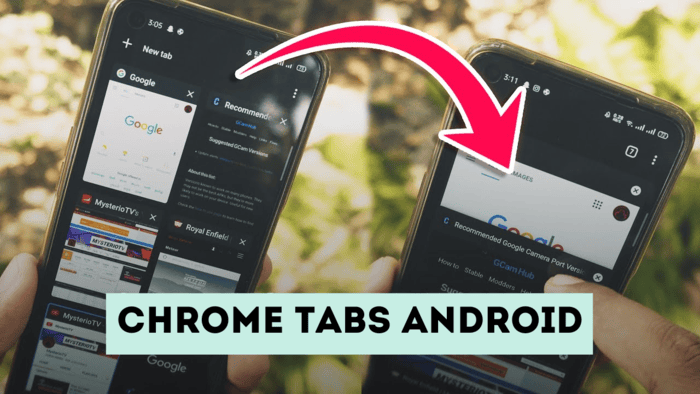
A better alternative is using Chrome Custom Tabs, which provide a lightweight and seamless way to open web pages within an app.
/wp:paragraph
wp:image {“id”:12047,”width”:”678px”,”height”:”auto”,”sizeSlug”:”full”,”linkDestination”:”media”,”align”:”center”}
/wp:image
wp:heading
Steps to Implement Chrome Tabs in Android
/wp:heading
wp:paragraph
We will integrate Chrome Custom Tabs to open a webpage when a button is clicked. Below is a step-by-step guide using Java.
/wp:paragraph
wp:heading {“level”:3}
1. Create a New Project
/wp:heading
wp:paragraph
To begin, set up a new project in Android Studio. Select Java as the programming language.
/wp:paragraph
wp:heading {“level”:3}
2. Add Dependency
/wp:heading
wp:paragraph
Open build.gradle (Module: app) and insert the following line in the dependencies section:
/wp:paragraph
wp:paragraph
implementation ‘androidx.browser:browser:1.2.0’
/wp:paragraph
wp:paragraph
After adding the dependency, sync the project.
/wp:paragraph
wp:image {“id”:12048,”width”:”670px”,”height”:”auto”,”sizeSlug”:”full”,”linkDestination”:”media”,”align”:”center”}
/wp:image
wp:heading {“level”:3}
3. Modify activity_main.xml
/wp:heading
wp:paragraph
Go to activity_main.xml and update it with the following layout:
/wp:paragraph
wp:paragraph
<?xml version=”1.0″ encoding=”utf-8″?>
/wp:paragraph
wp:paragraph
<RelativeLayout
/wp:paragraph
wp:paragraph
xmlns:android=”http://schemas.android.com/apk/res/android”
/wp:paragraph
wp:paragraph
xmlns:tools=”http://schemas.android.com/tools”
/wp:paragraph
wp:paragraph
android:layout_width=”match_parent”
/wp:paragraph
wp:paragraph
android:layout_height=”match_parent”
/wp:paragraph
wp:paragraph
tools:context=”.MainActivity”>
/wp:paragraph
wp:paragraph
<Button
/wp:paragraph
wp:paragraph
android:id=”@+id/idBtnCustomChromeTab”
/wp:paragraph
wp:paragraph
android:layout_width=”wrap_content”
/wp:paragraph
wp:paragraph
android:layout_height=”wrap_content”
/wp:paragraph
wp:paragraph
android:layout_centerInParent=”true”
/wp:paragraph
wp:paragraph
android:text=”Open Chrome Tab” />
/wp:paragraph
wp:paragraph
</RelativeLayout>
/wp:paragraph
wp:heading {“level”:3}
4. Implement Chrome Tabs in MainActivity.java
/wp:heading
wp:paragraph
Update MainActivity.java with the following code:
/wp:paragraph
wp:paragraph
import android.app.Activity;
/wp:paragraph
wp:paragraph
import android.content.Intent;
/wp:paragraph
wp:paragraph
import android.net.Uri;
/wp:paragraph
wp:paragraph
import android.os.Bundle;
/wp:paragraph
wp:paragraph
import android.view.View;
/wp:paragraph
wp:paragraph
import android.widget.Button;
/wp:paragraph
wp:paragraph
import androidx.appcompat.app.AppCompatActivity;
/wp:paragraph
wp:paragraph
import androidx.browser.customtabs.CustomTabsIntent;
/wp:paragraph
wp:paragraph
import androidx.core.content.ContextCompat;
/wp:paragraph
wp:paragraph
public class MainActivity extends AppCompatActivity {
/wp:paragraph
wp:paragraph
Button openChromeTabBtn;
/wp:paragraph
wp:paragraph
String webpageUrl = “https://www.geeksforgeeks.org/”;
/wp:paragraph
wp:paragraph
@Override
/wp:paragraph
wp:paragraph
protected void onCreate(Bundle savedInstanceState) {
/wp:paragraph
wp:paragraph
super.onCreate(savedInstanceState);
/wp:paragraph
wp:paragraph
setContentView(R.layout.activity_main);
/wp:paragraph
wp:paragraph
openChromeTabBtn = findViewById(R.id.idBtnCustomChromeTab);
/wp:paragraph
wp:paragraph
openChromeTabBtn.setOnClickListener(new View.OnClickListener() {
/wp:paragraph
wp:paragraph
@Override
/wp:paragraph
wp:paragraph
public void onClick(View v) {
/wp:paragraph
wp:paragraph
CustomTabsIntent.Builder customIntent = new CustomTabsIntent.Builder();
/wp:paragraph
wp:paragraph
customIntent.setToolbarColor(ContextCompat.getColor(MainActivity.this, R.color.purple_200));
/wp:paragraph
wp:paragraph
launchChromeTab(MainActivity.this, customIntent.build(), Uri.parse(webpageUrl));
/wp:paragraph
wp:paragraph
}
/wp:paragraph
wp:paragraph
});
/wp:paragraph
wp:paragraph
}
/wp:paragraph
wp:paragraph
public static void launchChromeTab(Activity activity, CustomTabsIntent customTabsIntent, Uri uri) {
/wp:paragraph
wp:paragraph
String browserPackage = “com.android.chrome”;
/wp:paragraph
wp:paragraph
if (browserPackage != null) {
/wp:paragraph
wp:paragraph
customTabsIntent.intent.setPackage(browserPackage);
/wp:paragraph
wp:paragraph
customTabsIntent.launchUrl(activity, uri);
/wp:paragraph
wp:paragraph
} else {
/wp:paragraph
wp:paragraph
activity.startActivity(new Intent(Intent.ACTION_VIEW, uri));
/wp:paragraph
wp:paragraph
}
/wp:paragraph
wp:paragraph
}
/wp:paragraph
wp:paragraph
}
/wp:paragraph
wp:heading
Summary of Implementation
/wp:heading
wp:table
| Step | Description |
| 1 | Create a new project and select Java |
| 2 | Add the required dependency in build.gradle |
| 3 | Design the UI with a button in activity_main.xml |
| 4 | Implement Chrome Tabs in MainActivity.java |
/wp:table
wp:paragraph
This method ensures a smoother user experience without the overhead of WebView or redirecting users to an external browser.
/wp:paragraph