Jamie
Jamiewp:paragraph
Chrome extensions can add cool features like ad blockers or productivity tools to your Android device.
/wp:paragraph
wp:paragraph
The regular Chrome app on mobile doesn’t allow extensions, but there’s a simple way to use them anyway.
/wp:paragraph
wp:paragraph
This guide explains how to set them up, suggests other browsers that work with extensions, and lists some great ones to try.
/wp:paragraph
wp:image {“id”:12175,”width”:”666px”,”height”:”auto”,”sizeSlug”:”full”,”linkDestination”:”media”,”align”:”center”}
/wp:image
wp:heading
Why Chrome on Android Doesn’t Support Extensions
/wp:heading
wp:paragraph
The Chrome app for Android doesn’t let you add extensions. This might be because phones have less power than computers, and extensions could slow things down or use up battery.
/wp:paragraph
wp:paragraph
Also, Google makes money from ads, so they might not like extensions that block them, which is why mobile Chrome skips this feature.
/wp:paragraph
wp:image {“id”:12177,”width”:”666px”,”height”:”auto”,”sizeSlug”:”full”,”linkDestination”:”media”,”align”:”center”}
/wp:image
wp:heading
Steps to Add Extensions on Android
/wp:heading
wp:paragraph
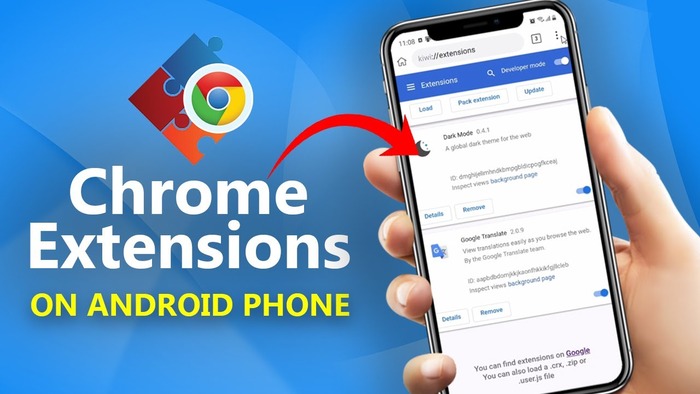
You can’t use extensions with Chrome on Android, but browsers like Kiwi or Yandex let you install them. Here’s how to do it with Kiwi Browser:
/wp:paragraph
wp:list {“ordered”:true}
- wp:list-item
- Get Kiwi Browser: Open the Google Play Store, search “Kiwi Browser,” and download it.
- Visit the Chrome Web Store: In Kiwi, type “chrome.google.com/webstore” in the address bar or go to Menu > Extensions > “+ from store.”
- Find an Extension: Search for something like “uBlock Origin” or “Dark Reader” and install it.
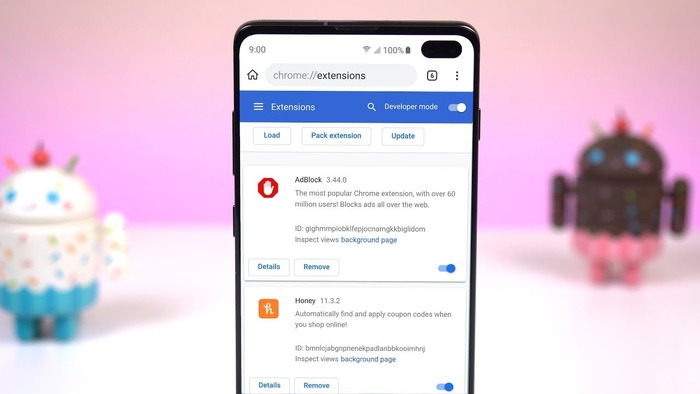
- Check Your Extensions: Go to the Menu, tap Extensions, and turn them on or off as needed.
- Test It Out: Browse a site to make sure the extension works, like checking if ads disappear with an ad blocker.
/wp:list-item
wp:list-item
/wp:list-item
wp:list-item
/wp:list-item
wp:list-item
/wp:list-item
wp:list-item
/wp:list-item
/wp:list
wp:heading
Top Browsers for Extensions on Android
/wp:heading
wp:paragraph
Some browsers work better with Chrome extensions than others. Here’s a quick look:
/wp:paragraph
wp:list
- wp:list-item
- Kiwi: Built for Android, it supports tons of Chrome extensions. It’s not updated often, though, which could be a safety issue.
/wp:list-item
/wp:list
wp:paragraph
/wp:paragraph
wp:list
- wp:list-item
- Yandex: This browser also uses Chrome extensions but is made by a Russian company, so some worry about privacy.
/wp:list-item
/wp:list
wp:paragraph
/wp:paragraph
wp:list
- wp:list-item
- Firefox: It doesn’t use Chrome extensions but has its own add-ons and updates regularly for security.
/wp:list-item
/wp:list
wp:heading
Great Extensions for Android
/wp:heading
wp:paragraph
Even though Chrome on Android skips extensions, other browsers let you use them. Here are some top picks:
/wp:paragraph
wp:list
- wp:list-item
- uBlock Origin Lite: Blocks ads and trackers, speeding up pages and keeping you private.
/wp:list-item
/wp:list
wp:paragraph
/wp:paragraph
wp:list
- wp:list-item
- Dark Reader: Makes websites dark to ease your eyes at night.
/wp:list-item
/wp:list
wp:paragraph
/wp:paragraph
wp:list
- wp:list-item
- Just Read: Removes junk from pages so you can read articles without distractions.
/wp:list-item
/wp:list
wp:image {“id”:12176,”width”:”662px”,”height”:”auto”,”sizeSlug”:”full”,”linkDestination”:”media”,”align”:”center”}
/wp:image
wp:heading
Fixing Extension Problems
/wp:heading
wp:paragraph
If an extension doesn’t work, try these tips:
/wp:paragraph
wp:list
- wp:list-item
- Check Permissions: Make sure the extension only asks for what it needs, like site access for ad blockers.
/wp:list-item
/wp:list
wp:paragraph
/wp:paragraph
wp:list
- wp:list-item
- Look at Reviews: Good ratings and recent comments mean it’s probably safe and works well.
/wp:list-item
/wp:list
wp:paragraph
/wp:paragraph
wp:list
- wp:list-item
- Update Regularly: Check the Web Store for the “Last updated” date to avoid old, risky extensions.
/wp:list-item
/wp:list
wp:paragraph
With these steps, you can enjoy Chrome extensions on your Android device!
/wp:paragraph