Jamie
JamieAn Android phone may feel ready once the home screen appears. But the first hour can prevent days of small problems. Good setup choices reduce data waste, secure bank apps, preserve battery life, and keep old app clutter at bay.
This guide covers Samsung, Pixel, OnePlus, Motorola, Xiaomi, and other Android phones common in Canada. It is built for real Canadian use, from transit apps to winter battery drain. The focus stays on settings that affect daily use.
Update the Phone Before Moving Your Data
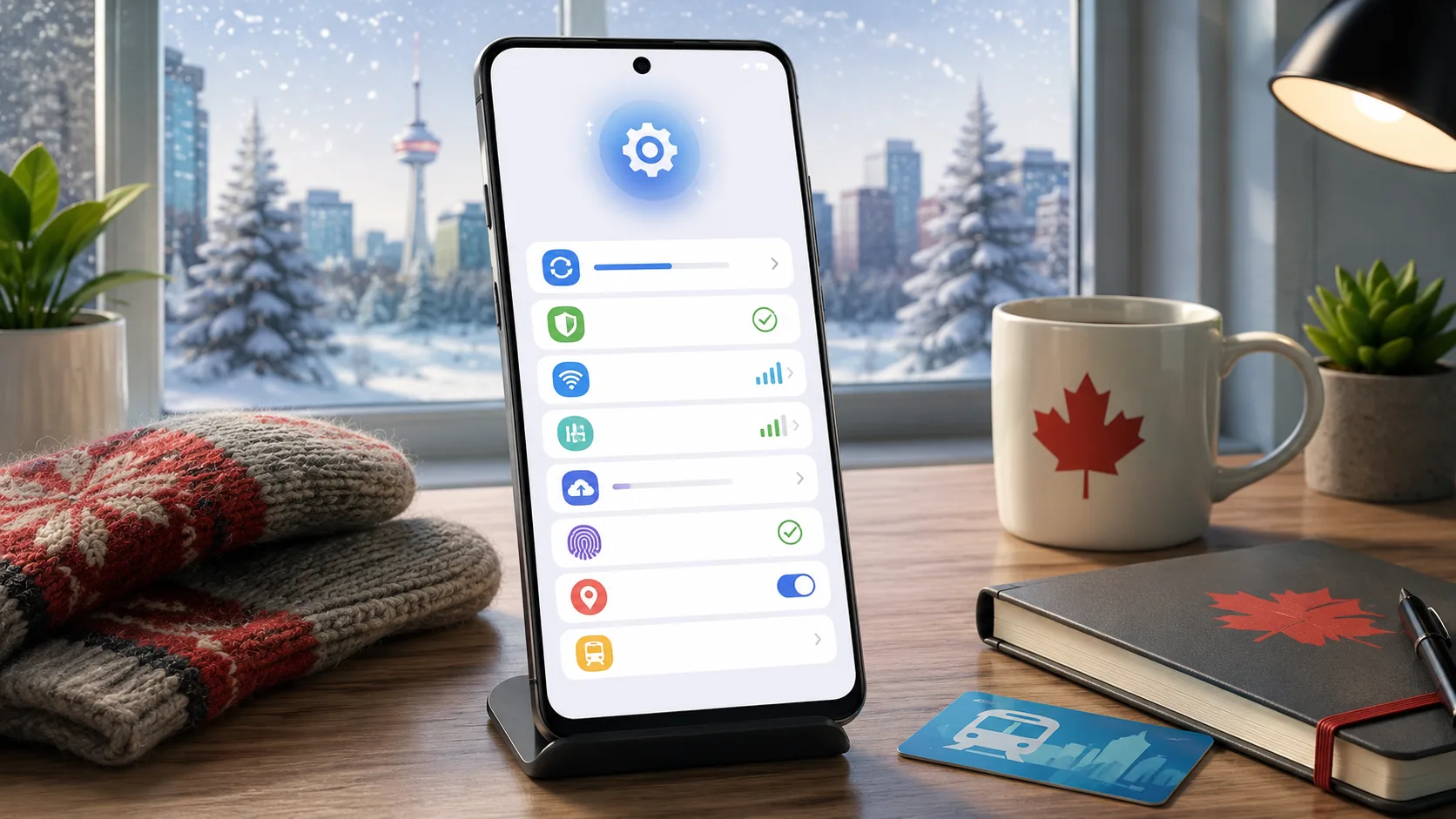
Start with the system update. Many phones sit in warehouses for weeks or months. A Pixel or Samsung bought in March may still need a January patch. That patch can fix bugs, camera errors, and security gaps.
Charge the phone to at least 50 percent before updating. Then connect to home Wi-Fi, not mobile data. A major Android update can pass 2 GB. That can burn through a small Canadian data plan fast, especially on a shared family plan.
Next, check Google Play system updates. Many users skip this second update menu. It controls security parts tied to Google services, payments, and app checks. It also keeps core Android services current before daily use begins.
First-Hour Setup Order
Before copying files or installing apps, set the phone’s core protections first:
- Install Android system updates before restoring old apps.
- Add a six-digit PIN, fingerprint, or face unlock.
- Set Canadian English for keyboard, spelling, and voice input.
- Sign in to Google, then restore contacts and messages.
- Install bank, transit, and work apps only after security setup.
This order prevents a common mistake. People often restore 80 apps first. Then one weak old app starts syncing before the phone has current protection. A cleaner setup also makes later permission checks easier.
Casino Bonuses and App Permissions: What to Check First
Casino bonus pages are a useful comparison point for mobile setup. They show why Canadians should read terms before tapping “accept”. The same habit helps with app permissions, trial offers, subscriptions, and payment settings.
For example, the Jackpot City welcome offer for Canadians should be checked for terms, wagering rules, payment limits, and eligibility. CasinosAnalyzer can help compare those points in one place. The same reading habit also applies when an app asks for contacts, location, camera, or payment access.
Do not treat “Allow” as a default answer. A weather app may need location. A note app does not need microphone access. A casino app may need identity checks, but it should not need your full contact list.
Use this quick permission test:
- Allow location only when the app is in use.
- Deny contacts unless the app has a clear reason.
- Turn off camera access after verification is complete.
- Remove unused apps before they store more data.
- Check payment settings before saving a card.
This section is not only about casinos. It is about any phone task linked to spending. Phone setup should make each tap more deliberate.
Set Up Security Before Installing Banking or Casino Apps
Now protect the phone like a wallet. In Canada, one device often holds Interac e-Transfer access, banking apps, work email, health portals, and transit payments. A weak lock screen puts all of them at risk.
Use a PIN with at least six digits. Avoid birth years, postal code numbers, and repeated digits. Also turn on Find My Device. It helps locate, lock, or erase the phone after loss.
For money-related apps, slow down before signing in. This includes banking apps, trading apps, shopping apps, and online casino apps. Check the app publisher, permissions, reviews, and login options.
Two-factor authentication is worth the extra step. Use an authenticator app where possible. SMS codes can still help, but they are weaker if a SIM swap occurs.
Reduce Background Data Before Your First Billing Cycle
Canadian mobile data is expensive enough to watch closely. A 5 GB plan can feel large on day one. Yet cloud restore, app updates, maps, video previews, and photo backup can use it quickly.
Open Settings and check Data Saver. Then limit background data for apps that do not need live updates. Social apps, video apps, and store apps are good first targets. This step matters most before the first bill arrives. It also helps during long commutes on LTE.
Next, set app updates to Wi-Fi only. Google Play can update 30 apps after setup. Some updates are small, but others pass 500 MB. That is a large hit during the first week, especially on a student or shared plan.
This is also the right place to follow the Get Cyber Safe new device checklist. It points users toward three basic checks: delete unused apps, review access settings, and keep software current. That small effort can reduce security and performance issues over time.
Turn On Canadian Emergency Alerts and Local Tools
Canada’s Alert Ready system can send urgent warnings to compatible phones. These may include tornadoes, wildfire alerts, floods, Amber Alerts, and civil danger notices.
Most Android phones sold by Canadian carriers support these alerts. Still, check the emergency alerts menu after setup. Imported phones can sometimes behave differently on Canadian networks. This is worth checking before storm or wildfire season.
Add local tools next. A user in Toronto may need PRESTO and a parking app. A Vancouver user may add TransLink tools. Someone in Alberta may need wildfire, weather, or road-condition apps. A Montreal user may also add transit and snow-clearing updates.
Keep these apps limited. Local tools can be useful, but too many will drain battery and data. Keep the apps used weekly. Delete the rest after one month. That keeps alerts, maps, and transit tools easier to find.
Back Up Photos Before Winter Trips
Cold weather changes phone habits in Canada. A battery that lasts all day in September may drop faster in February. Ski trips, winter hikes, and outdoor hockey games also create backup risks.
Before a trip, set Google Photos or another cloud tool to back up on Wi-Fi. A one-minute 4K clip can pass 300 MB on many phones. Ten short clips can fill storage faster than expected. Check backup status before leaving home, not after arriving.
Also enable glove mode if your phone supports it. Some Samsung, Xiaomi, and rugged models offer higher touch sensitivity. Test it before leaving home. A setting that works with thin gloves may fail with thick mitts.
Finally, keep at least 15 percent storage free. Android needs space for updates, app cache, and camera files. On a 128 GB phone, that means keeping about 19 GB open. This also leaves room for offline maps and travel documents.
Final Android Setup Checks for Canadian Buyers
A good setup is not about changing every menu. It is about fixing the settings that affect money, safety, battery, and data use.
Before calling the phone ready, confirm four things. Updates are installed. Lock screen security is active. App permissions are limited. Backups run on Wi-Fi. Also check that emergency alerts are turned on.
That gives the phone a stronger start. It also saves time later, when the device holds more photos, logins, payments, and work files. After one week, review battery and data use again.