Jamie
Jamiewp:paragraph
JavaScript is a powerful scripting language that enhances the functionality of websites by enabling dynamic and interactive elements.
/wp:paragraph
wp:paragraph
Many websites rely on JavaScript for features such as animations, form validation, and interactive menus.
/wp:paragraph
wp:paragraph
If JavaScript is disabled on your iPhone, certain web pages may not function properly or may appear broken when viewed in the Safari browser.
/wp:paragraph
wp:paragraph
If you are experiencing issues with website functionality, you may need to enable JavaScript on your device.
/wp:paragraph
wp:paragraph
Below is a detailed guide on how to turn on JavaScript in Safari on an iPhone.
/wp:paragraph
wp:image {“id”:12358,”width”:”666px”,”height”:”auto”,”sizeSlug”:”full”,”linkDestination”:”media”,”align”:”center”}

/wp:image
wp:heading
Steps to Enable JavaScript on an iPhone
/wp:heading
wp:list {“ordered”:true}
- wp:list-item
- Open the Settings App
wp:list- wp:list-item
- Locate and tap the Settings app on your iPhone’s home screen.
/wp:list-item
/wp:list
- Scroll Down and Select Safari
wp:list- wp:list-item
- In the Settings menu, scroll down until you find Safari and tap on it.
/wp:list-item
/wp:list
- Access the Advanced Settings
wp:list- wp:list-item
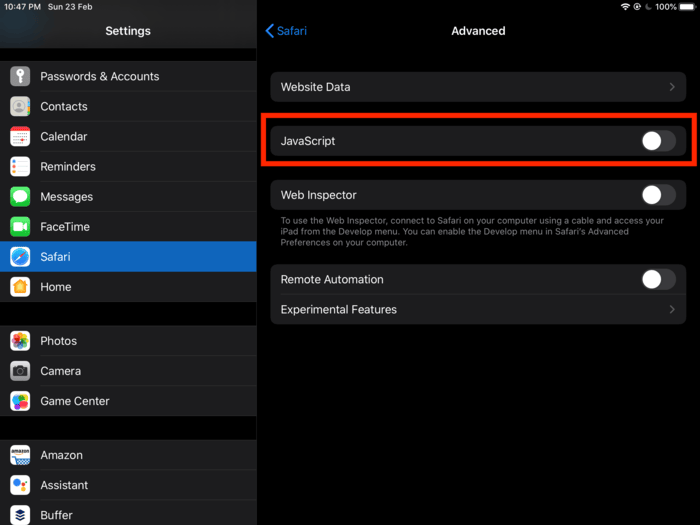
- Continue scrolling down within the Safari settings until you see the Advanced option. Tap on it to access advanced browser configurations.
/wp:list-item
/wp:list
- Turn on JavaScript
wp:list- wp:list-item
- Find the JavaScript toggle switch and turn it on by tapping it. When enabled, the switch will turn green.
/wp:list-item
/wp:list
/wp:list-item
wp:list-item
/wp:list-item
wp:list-item
/wp:list-item
wp:list-item
/wp:list-item
/wp:list
wp:paragraph
After enabling JavaScript, your iPhone will be able to process JavaScript-based elements on websites, ensuring a smooth and interactive browsing experience.
/wp:paragraph
wp:image {“id”:12361,”width”:”610px”,”height”:”auto”,”sizeSlug”:”full”,”linkDestination”:”media”,”align”:”center”}
/wp:image
wp:heading
Enabling Both JavaScript and Cookies on an iPhone
/wp:heading
wp:paragraph
If you need to enable both JavaScript and cookies for a better browsing experience, follow these additional steps:
/wp:paragraph
wp:list {“ordered”:true}
- wp:list-item
- Open the Settings app on your iPhone.
- Scroll down and tap Safari.
- Under the Privacy & Security section, locate Block All Cookies and make sure it is turned off to allow cookies.
- To enable JavaScript, go to Safari > Advanced > JavaScript and turn the switch on.
/wp:list-item
wp:list-item
/wp:list-item
wp:list-item
/wp:list-item
wp:list-item
/wp:list-item
/wp:list
wp:paragraph
This will allow websites to remember your preferences, keep you logged in, and display dynamic content properly.
/wp:paragraph
wp:heading
How to Enable JavaScript in Other Web Browsers?
/wp:heading
wp:heading {“level”:3}
Google Chrome (iPhone & Desktop)
/wp:heading
wp:list {“ordered”:true}
- wp:list-item
- Open the Chrome browser.
- Tap the three-dot menu in the top-right corner (or bottom-right corner on iPhone).
- Select Settings from the menu.
- Scroll down and tap Privacy and Security.
- Tap Site Settings, then select JavaScript.
- Make sure JavaScript is set to Allowed.
/wp:list-item
wp:list-item
/wp:list-item
wp:list-item
/wp:list-item
wp:list-item
/wp:list-item
wp:list-item
/wp:list-item
wp:list-item
/wp:list-item
/wp:list
wp:heading {“level”:3}
Google Chrome (Android)
/wp:heading
wp:list {“ordered”:true}
- wp:list-item
- Open the Chrome browser on your Android device.
- Tap the three-dot menu in the top-right corner.
- Select Settings and go to Site Settings.
- Tap JavaScript and turn it on.
/wp:list-item
wp:list-item
/wp:list-item
wp:list-item
/wp:list-item
wp:list-item
/wp:list-item
/wp:list
wp:heading {“level”:3}
Mozilla Firefox
/wp:heading
wp:list {“ordered”:true}
- wp:list-item
- Open Firefox on your device.
- Tap the menu button (three horizontal lines) in the top-right corner.
- Select Settings (or Options on a desktop).
- Scroll down to Privacy & Security.
- Find the Permissions section and ensure JavaScript is enabled.
/wp:list-item
wp:list-item
/wp:list-item
wp:list-item
/wp:list-item
wp:list-item
/wp:list-item
wp:list-item
/wp:list-item
/wp:list
wp:heading {“level”:3}
Microsoft Edge
/wp:heading
wp:list {“ordered”:true}
- wp:list-item
- Open Edge on your device.
- Click on the three-dot menu in the upper-right corner.
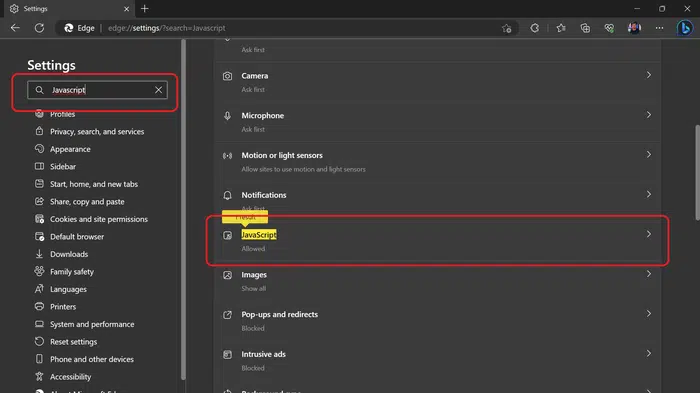
- Select Settings and navigate to Cookies and site permissions.
- Scroll down and click JavaScript.
- Toggle the switch to Allowed.
/wp:list-item
wp:list-item
/wp:list-item
wp:list-item
/wp:list-item
wp:list-item
/wp:list-item
wp:list-item
/wp:list-item
/wp:list
wp:image {“id”:12360,”width”:”660px”,”height”:”auto”,”sizeSlug”:”full”,”linkDestination”:”media”,”align”:”center”}
/wp:image
wp:heading
Common JavaScript Issues and Troubleshooting
/wp:heading
wp:paragraph
If JavaScript is enabled but web pages are still not working correctly, consider the following troubleshooting steps:
/wp:paragraph
wp:list
- wp:list-item
- Check for Errors in the Browser Console: Open the developer tools in your browser and inspect the console for error messages.
/wp:list-item
/wp:list
wp:paragraph
/wp:paragraph
wp:list
- wp:list-item
- Clear Browser Cache and Cookies: Old cache files or cookies may interfere with JavaScript execution. Clear your browser’s cache and try again.
/wp:list-item
/wp:list
wp:paragraph
/wp:paragraph
wp:list
- wp:list-item
- Disable Browser Extensions: Some browser extensions may block JavaScript. Temporarily disable them and test if the issue is resolved.
/wp:list-item
/wp:list
wp:paragraph
/wp:paragraph
wp:list
- wp:list-item
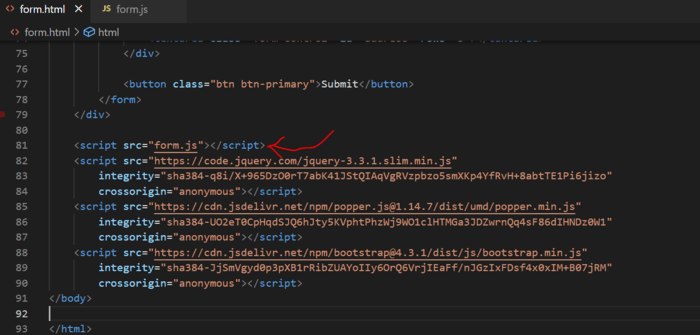
- Ensure Correct JavaScript Syntax: If you are a developer, verify that your JavaScript code has the correct syntax and is placed within <script> tags properly.
/wp:list-item
/wp:list
wp:paragraph
/wp:paragraph
wp:list
- wp:list-item
- Update Your Browser: Running an outdated browser may cause JavaScript errors. Ensure your browser is up to date.
/wp:list-item
/wp:list
wp:heading
Why JavaScript May Not Work in HTML?
/wp:heading
wp:image {“id”:12359,”width”:”662px”,”height”:”auto”,”sizeSlug”:”full”,”linkDestination”:”media”,”align”:”center”}
/wp:image
wp:paragraph
JavaScript may fail to execute within an HTML file due to several reasons:
/wp:paragraph
wp:list
- wp:list-item
- Incorrect Placement of the <script> Tag: JavaScript should be placed inside the <head> or before the closing </body> tag.
/wp:list-item
/wp:list
wp:paragraph
/wp:paragraph
wp:list
- wp:list-item
- Syntax Errors: Any missing semicolons, brackets, or incorrect function usage may prevent the script from running.
/wp:list-item
/wp:list
wp:paragraph
/wp:paragraph
wp:list
- wp:list-item
- Disabled JavaScript in the Browser: Ensure JavaScript is enabled in your browser settings.
/wp:list-item
/wp:list
wp:paragraph
/wp:paragraph
wp:list
- wp:list-item
- Conflicting Scripts or Libraries: If multiple JavaScript files are loaded incorrectly or have conflicts, they may cause errors.
/wp:list-item
/wp:list
wp:heading
Fixing JavaScript Errors in Google Chrome
/wp:heading
wp:paragraph
If you encounter JavaScript-related errors while browsing in Google Chrome, follow these steps to resolve the issue:
/wp:paragraph
wp:list {“ordered”:true}
- wp:list-item
- Inspect the Console for Errors:
wp:list- wp:list-item
- Open Chrome and press Ctrl + Shift + J (Windows) or Cmd + Option + J (Mac) to view JavaScript errors in the developer console.
/wp:list-item
/wp:list
- Update Your Browser:
wp:list- wp:list-item
- Ensure you are using the latest version of Chrome. Outdated versions may cause script errors.
/wp:list-item
/wp:list
- Disable Browser Extensions:
wp:list- wp:list-item
- Some extensions may interfere with JavaScript execution. Disable them and reload the page.
/wp:list-item
/wp:list
- Clear Cache and Cookies:
wp:list- wp:list-item
- Go to Settings > Privacy and Security > Clear browsing data and delete cached files.
/wp:list-item
/wp:list
- Check JavaScript Permissions:
wp:list- wp:list-item
- Go to Settings > Privacy and Security > Site Settings > JavaScript and ensure it is enabled.
/wp:list-item
/wp:list
/wp:list-item
wp:list-item
/wp:list-item
wp:list-item
/wp:list-item
wp:list-item
/wp:list-item
wp:list-item
/wp:list-item
/wp:list
wp:paragraph
By following these steps, you can troubleshoot and fix most JavaScript-related issues in Chrome.
/wp:paragraph
wp:heading
Final Thoughts
/wp:heading
wp:paragraph
JavaScript is essential for modern web browsing, as it allows websites to display dynamic content, interactive elements, and enhanced user experiences.
/wp:paragraph
wp:paragraph
Enabling JavaScript on your iPhone or other devices ensures that web pages function as intended without missing critical features.
/wp:paragraph
wp:paragraph
Whether you’re using Safari, Chrome, Firefox, or Edge, enabling JavaScript is a simple process that can significantly improve your browsing experience.
/wp:paragraph
wp:paragraph
If you encounter issues, troubleshooting steps such as clearingthe cache, updating your browser, and checking script settings can help resolve them.
/wp:paragraph